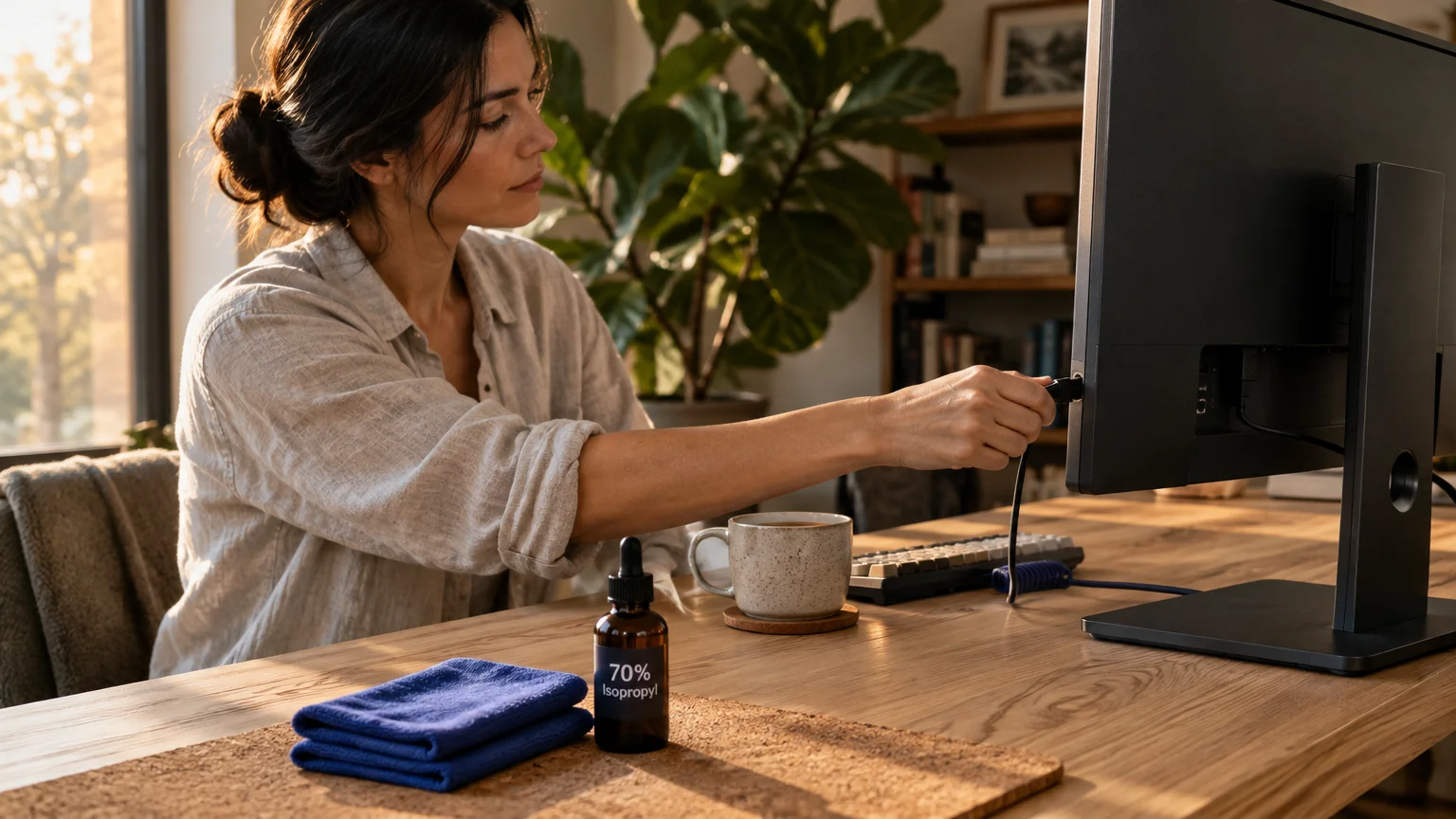
You can easily remove stubborn grime, oily fingerprints, and harmful bacteria from your favorite devices without risking costly internal damage. Learning how to clean electronics properly protects sensitive touchscreens and extends the working lifespan of your essential hardware.
Harsh household cleaners and soaked paper towels strip delicate optical coatings and short out fragile circuitry within seconds. Using the correct gentle techniques keeps your displays crystal clear and your equipment hygienic.
Follow these field-tested methods to refresh your phones, keyboards, and entertainment systems with complete confidence.
01 Disconnect Power and Allow Hardware to Cool
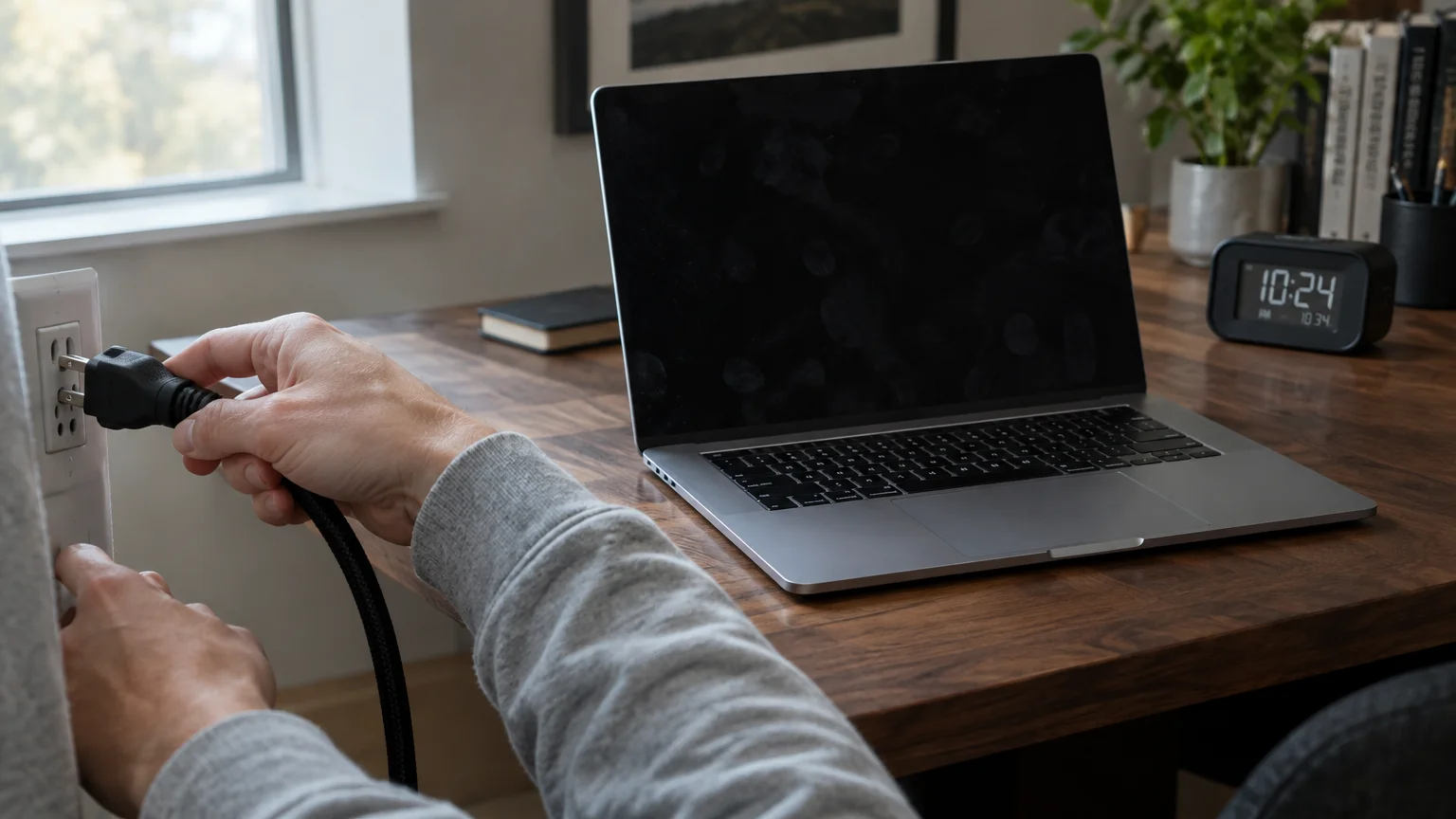
Always shut down your equipment and unplug it from the wall outlet before starting any cleaning task. Doing so prevents accidental inputs and protects sensitive circuitry from electrical shorts.
If your device uses a removable battery, take it out before wiping the exterior housing. This precaution safeguards your hardware from stray static discharges and accidental short circuits.
Give warm laptop displays, television screens, and computer monitors ten minutes to cool down to room temperature. Applying liquid cleaners to hot screens can cause thermal stress and leaves streaky residue behind.
Turning off the power also turns your screens black. This dark backdrop makes dust, smudges, and oily fingerprints much easier to identify and remove.
02 Use Optical-Grade Microfiber Instead of Paper Towels
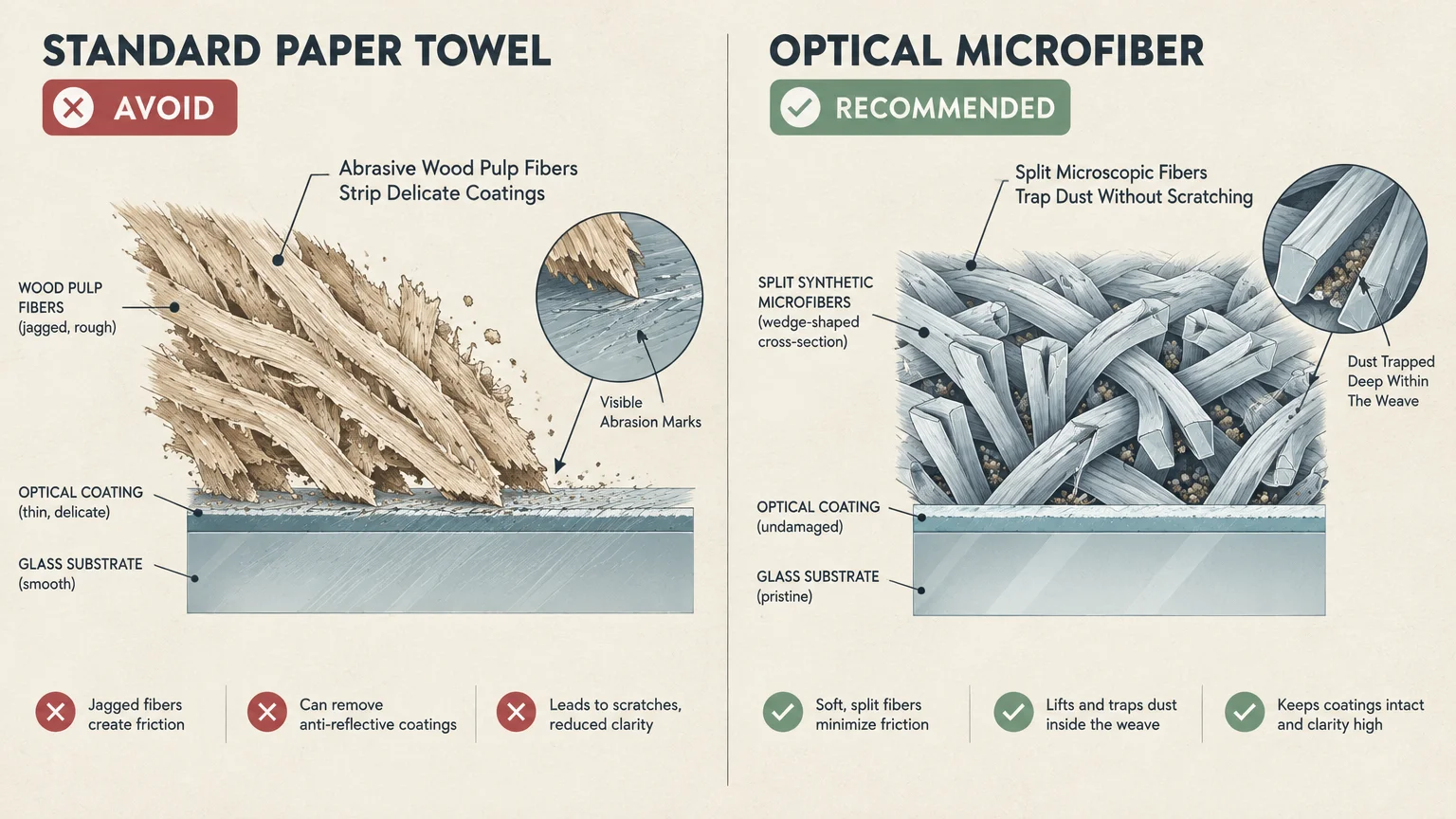
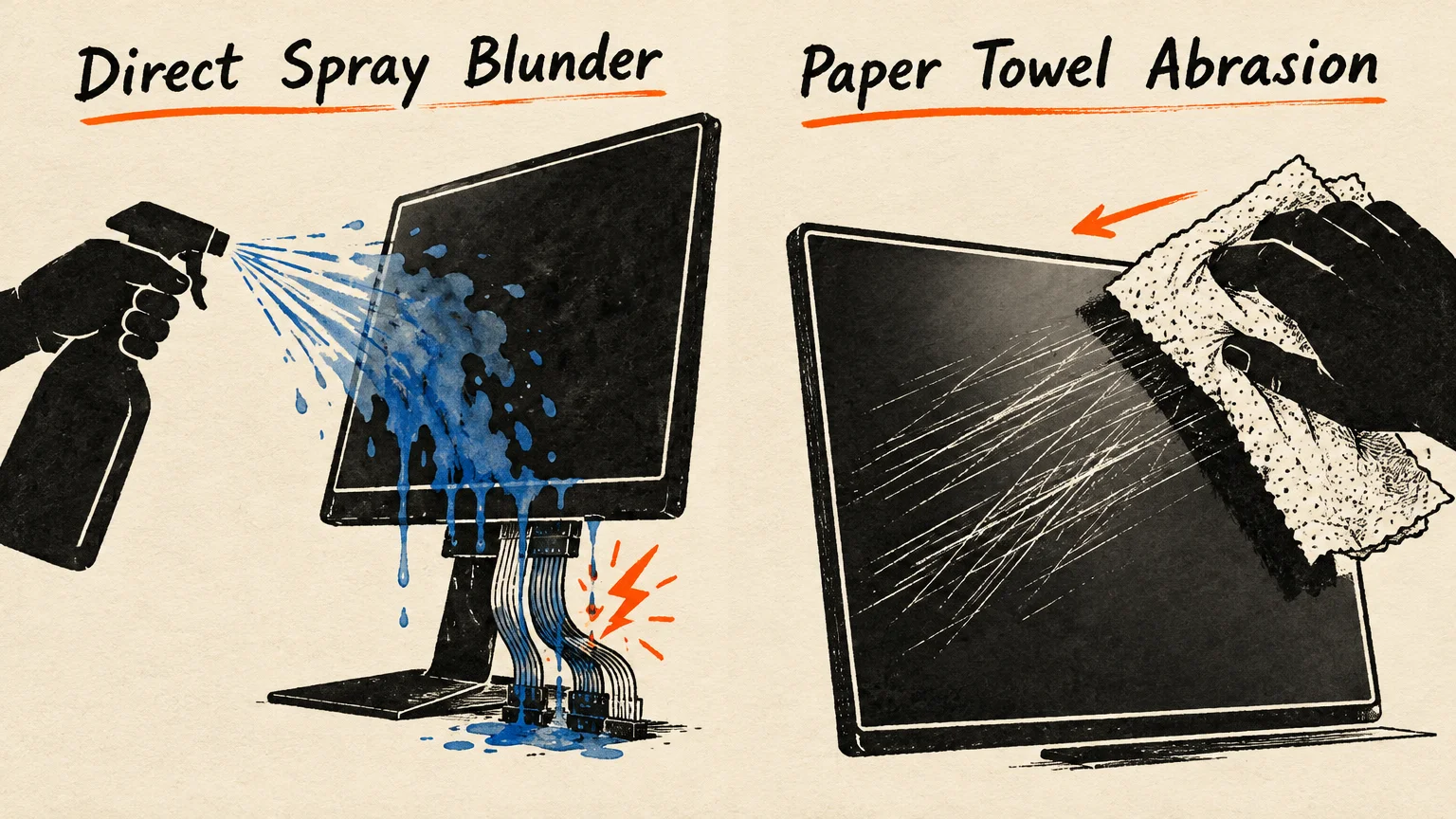
Standard paper towels, facial tissues, and kitchen napkins contain abrasive wood pulp fibers that scratch delicate surfaces. These microscopic abrasions accumulate gradually, clouding glossy screens and wearing down anti-reflective finishes permanently.
Always choose high-density, lint-free microfiber cloths designed specifically for camera optics and eyewear. The split microscopic fibers lift and trap dust particles rather than dragging them across sensitive glass.
Dedicate separate cloths for screens and outer plastic housings to avoid cross-contaminating delicate displays with trapped grit. Keep one cloth specifically for glass panels and another for keyboards and desk equipment.
Wash your microfiber cloths regularly in warm water without fabric softeners or liquid bleach. Fabric softeners coat split fibers in oily chemical residues, destroying their ability to attract dust.
Let your microfiber cloths air-dry on a clean rack before storing them in sealed zip-top bags. Storing cloths in sealed bags prevents airborne grit from settling into the fabric fibers between uses.
03 Dilute Isopropyl Alcohol and Avoid Harsh Solvents
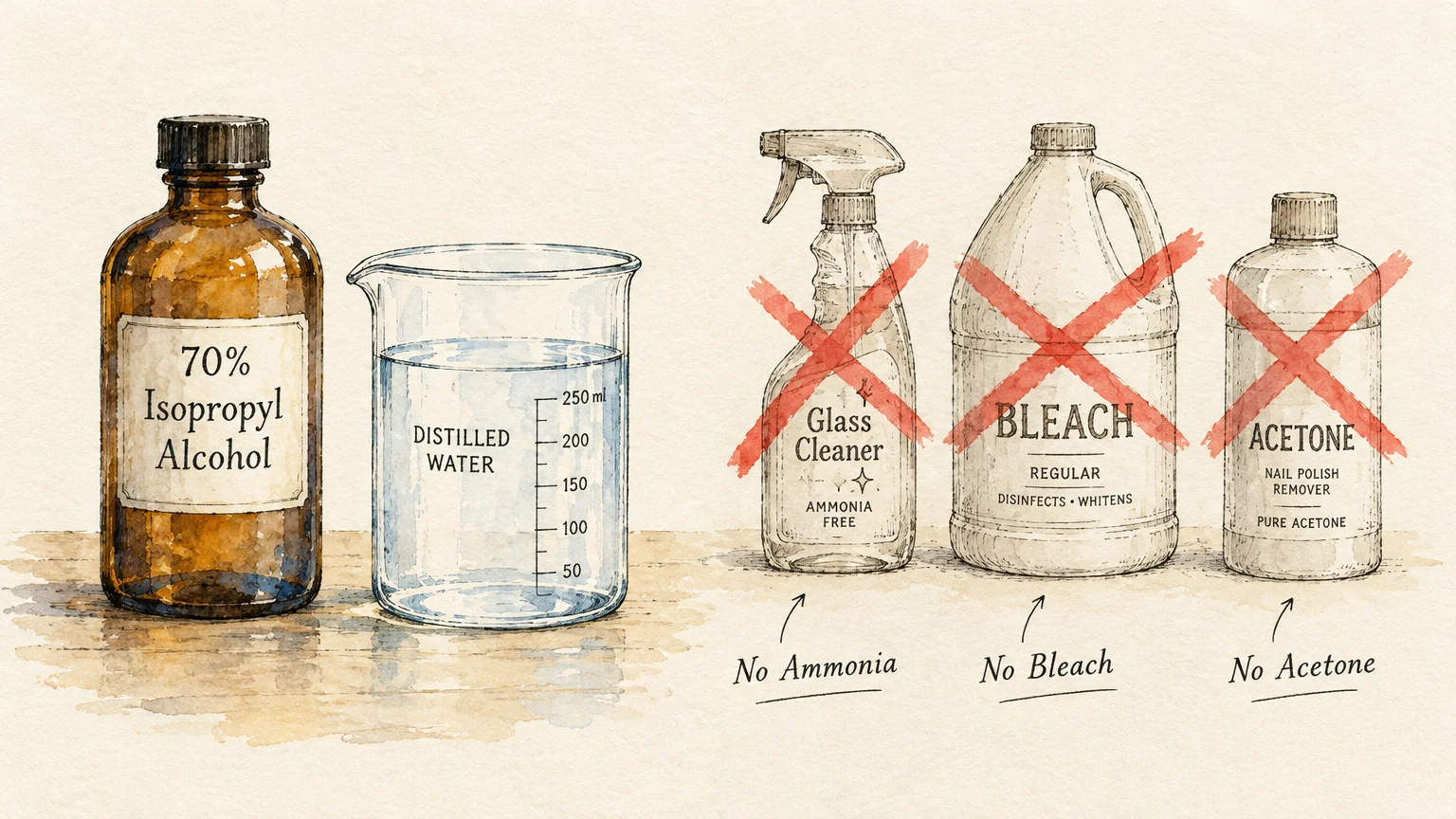
Pure seventy percent isopropyl alcohol delivers the ideal balance of antimicrobial action and safe surface evaporation. Formulations with higher alcohol percentages evaporate too quickly to kill germs, while lower concentrations leave behind unwanted excess moisture.
Official manufacturer guidelines, such as the Apple cleaning guidelines, permit seventy percent isopropyl alcohol wipes for non-porous exterior surfaces. Never use household glass cleaners, pure acetone, hydrogen peroxide, or bleach solutions on any modern device.
Window sprays contain ammonia, which strips anti-glare coatings from computer monitors, tablets, and smartphone displays. Bleach degrades plastic casings, causing brittle edges and yellow discoloration over time.
Always consult manufacturer advice, such as Samsung support recommendations, before applying any solution to high-end mobile glass. Gentle solutions safeguard your equipment and preserve your device warranty.
When commercial alcohol wipes are unavailable, mix equal parts distilled water and seventy percent isopropyl alcohol in a small spray bottle. Shake the bottle gently before each use to ensure an even blend.
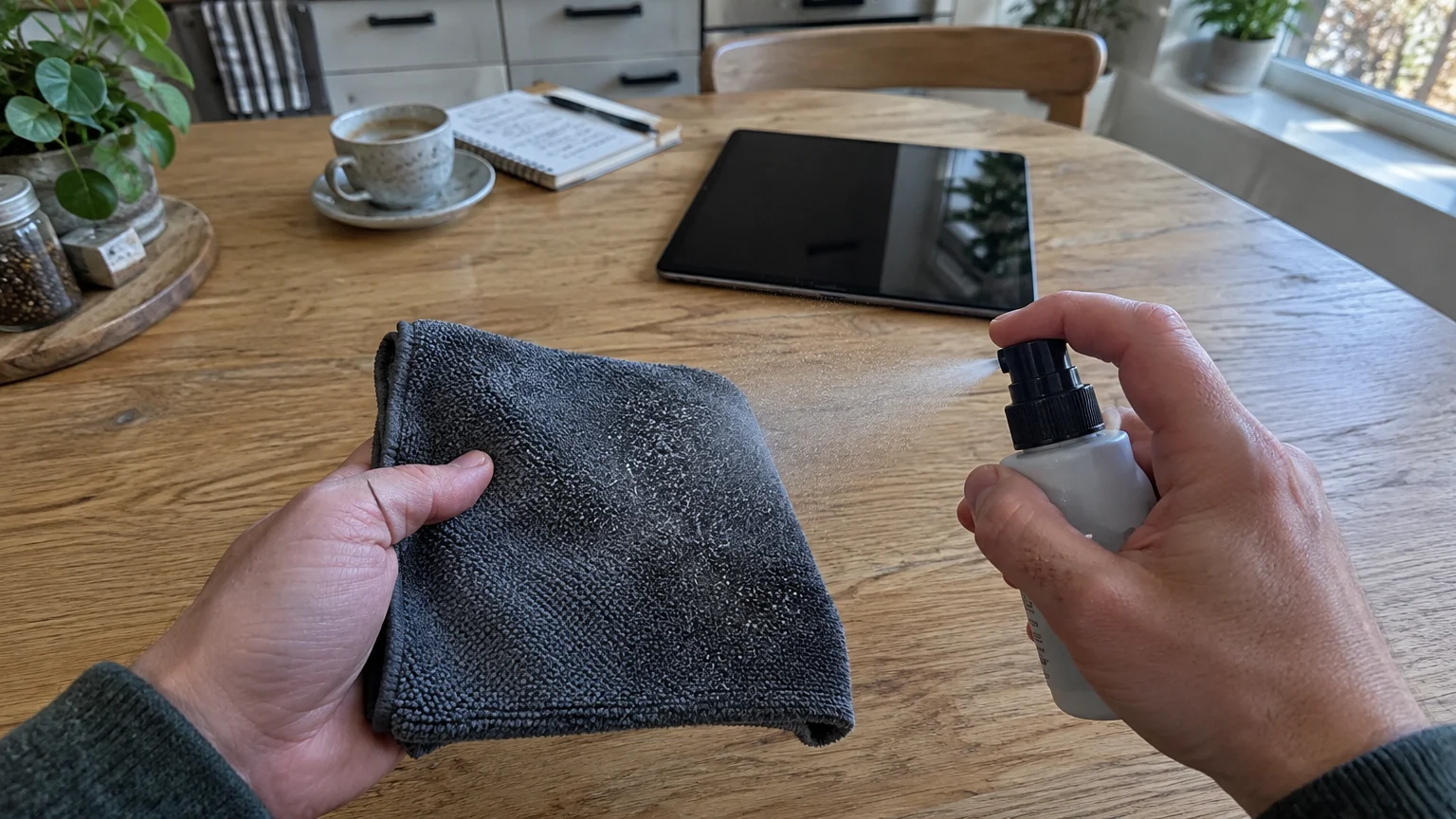
04 Mist the Microfiber Cloth Instead of the Glass
Never spray liquid cleansers directly onto any screen, keyboard, or electronic control panel. Liquid droplets flow rapidly into speaker grilles, microphone ports, and display bezels through capillary action.
Liquid trapped behind an outer bezel damages internal backlight diffusers and creates dark spots across display panels. Moisture reaching an internal circuit board often causes fatal corrosion that permanently ruins hardware.
Hold your spray bottle several inches away and mist the cleaning solution lightly onto a folded microfiber cloth. The cloth should feel slightly cool and damp, never wet or saturated.
Squeeze the cloth firmly before touching your electronics; if any moisture drips, the fabric is too damp. Use a separate dry microfiber cloth immediately afterward to buff away residual streaks.
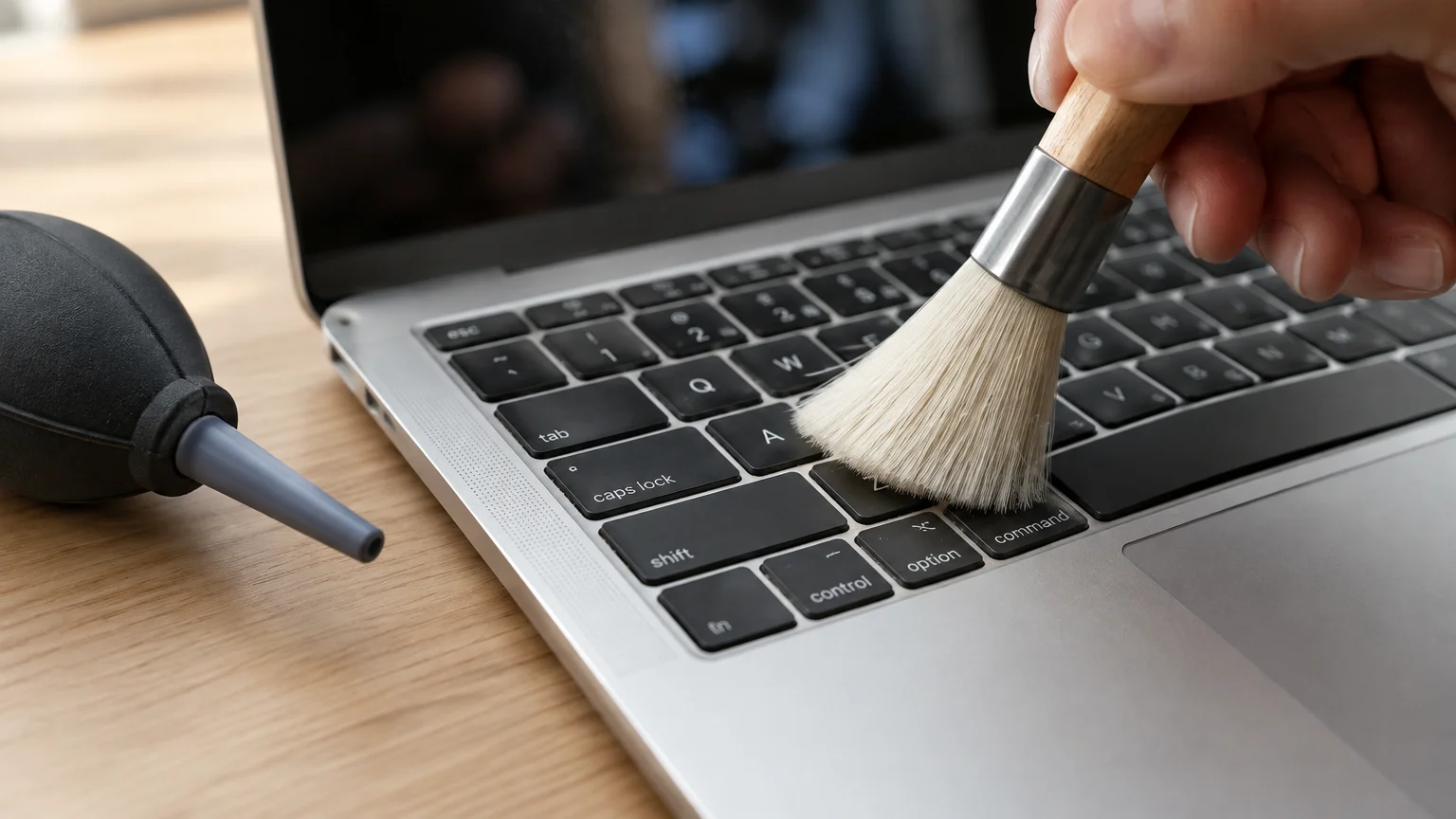
05 How to Clean Laptop Keyboard Trays and Keys Safely
Daily typing drives crumbs, pet hair, and skin oils into the narrow crevices around your keys. Over time, this debris causes sticky keys, unresponsive switches, and impaired cooling airflow inside laptop bodies.
When you clean laptop keyboard assemblies, turn the powered-off machine upside down over a clean surface. Tap the bottom casing gently to shake loose dry crumbs and dust trapped beneath the keycaps.
Hold a can of compressed air upright, keeping the nozzle a short distance from the keyboard surface. Blow short, controlled bursts of air across the keyboard while tilting the laptop at an angle.
Never shake the compressed air can or tilt it upside down while spraying. Inverting the can expels freezing liquid refrigerant that can crack plastic keys and damage internal switches.
Moisten a cotton swab with seventy percent isopropyl alcohol to detail grime along keycap edges. Buff the top of the keys with a dry microfiber cloth to remove oily shine.
Avoid prying off keycaps on modern thin laptops because delicate plastic scissor clips break easily under pressure. Reserve keycap removal exclusively for mechanical desktop keyboards with dedicated switch-puller tools.
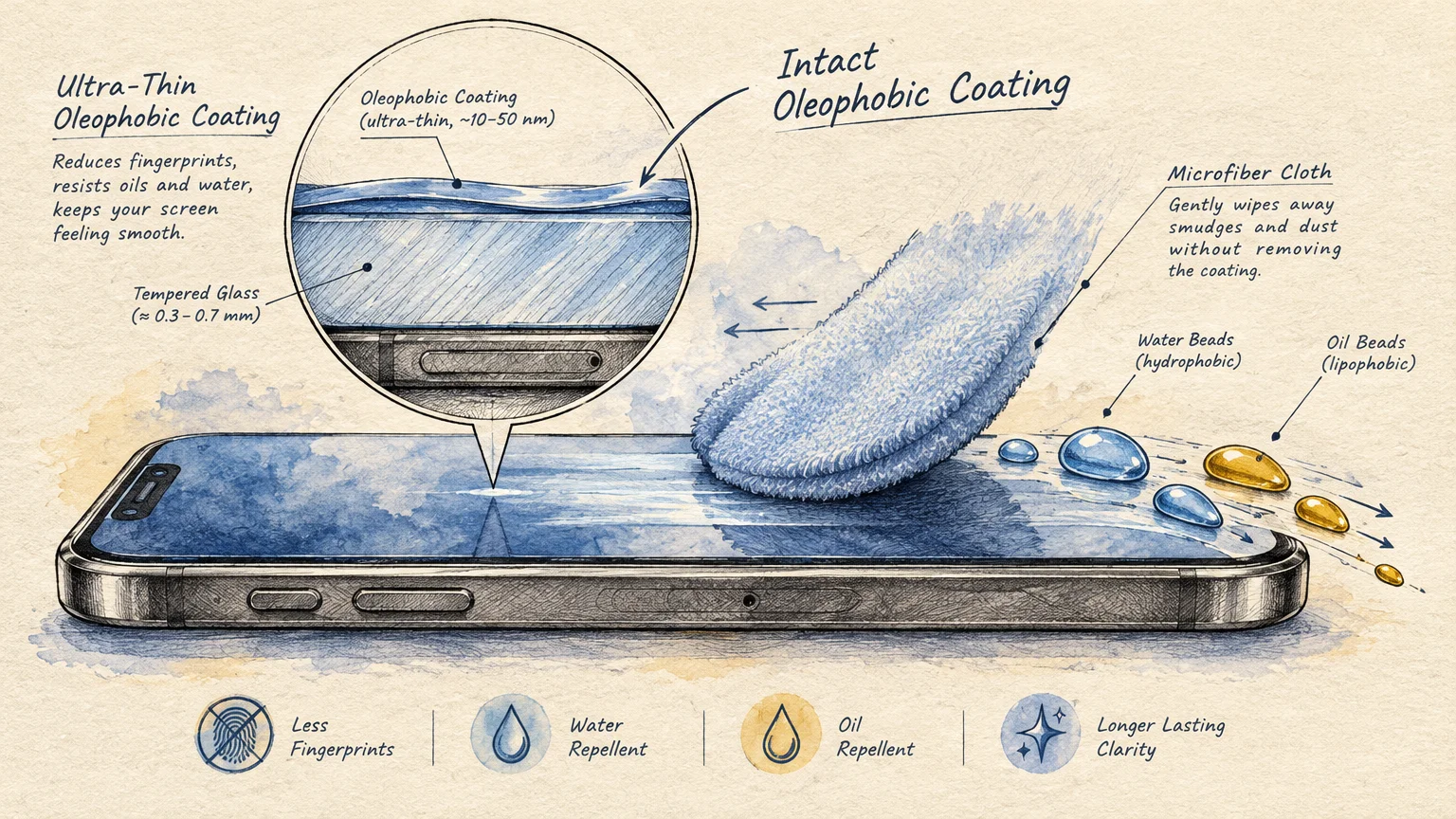
06 Clean Phone Screen Safely and Protect Protective Coatings
Touchscreens feature a factory-applied oleophobic coating that repels finger oils and keeps glass feeling slick. Scrubbing aggressively or applying harsh chemicals strips this barrier, leaving displays vulnerable to stubborn smudges and micro-scratches.
To clean phone screen safely, wipe the glass in gentle circular motions using a dry optical microfiber cloth. This light friction lifts surface oils without scratching the glass or wearing down factory coatings.
If sticky spots remain, dampen a cloth corner lightly with distilled water and wipe the affected area. Follow immediately with a dry cloth section to prevent water spots and lingering moisture lines.
Inspect charging ports and speaker openings under good lighting to locate packed pocket lint. Never push metal sewing needles, safety pins, or paperclips into charging ports.
Metal tools can bend gold contact pins and cause permanent electrical shorts inside your phone. Instead, insert a dry wooden toothpick carefully, sweeping around port edges to tease lint free.
Clean camera lenses with a dry microfiber cloth before taking photos. Smudged camera glass produces hazy glare and blurry focus across your mobile pictures.
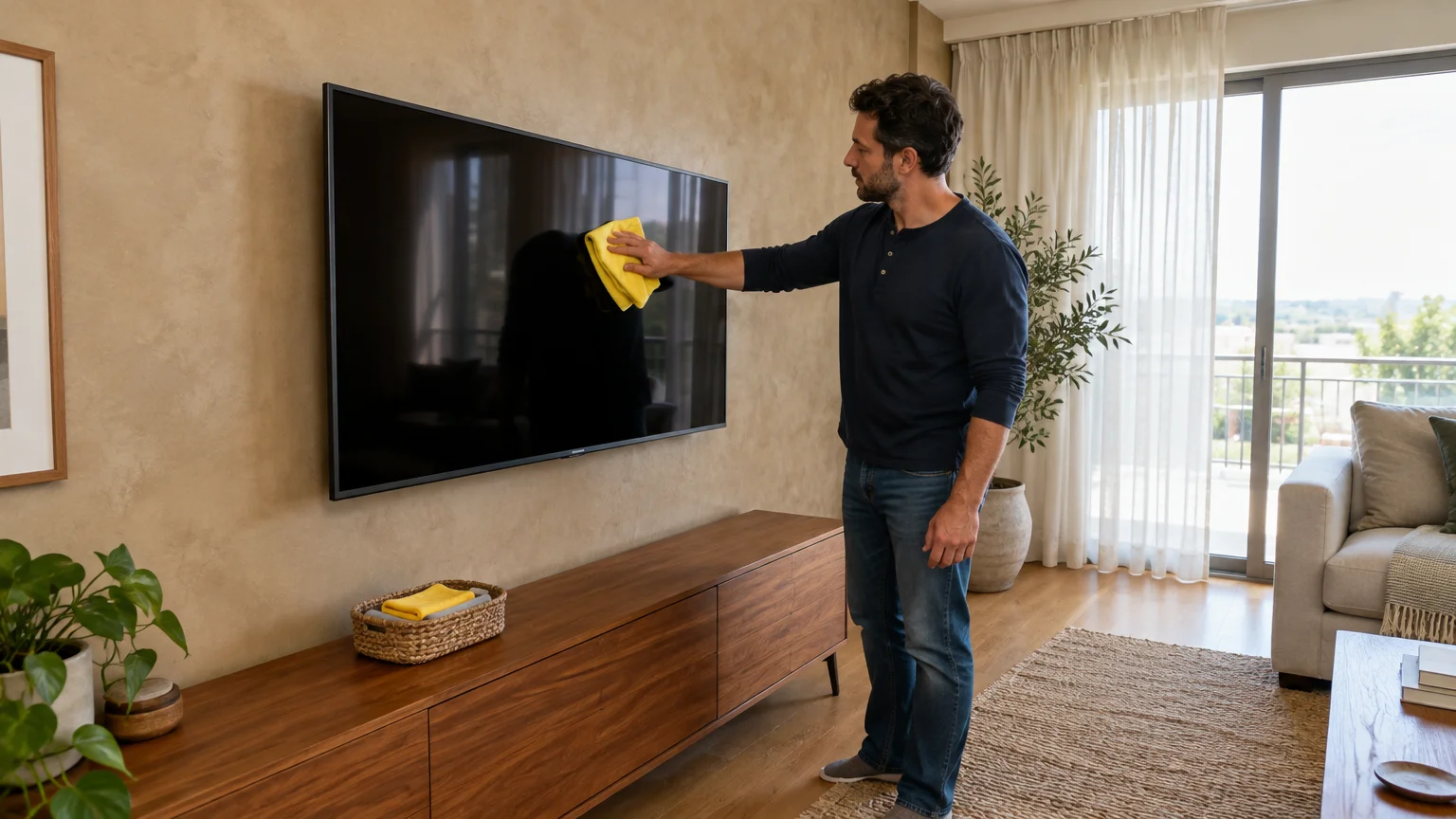
07 How to Clean TV Screen Panels and Desktop Monitors
Modern OLED, QLED, and matte computer monitors feature delicate polarizing layers and anti-reflective films. Pressing hard against an active screen can damage delicate pixels, creating permanent black spots or uneven backlighting.
When learning how to clean tv screen panels, switch the television off and let it cool completely. A dark display reveals hidden streaks, dust layers, and fingerprints that remain invisible on an active screen.
Sweep a clean, dry microfiber cloth across the screen using broad, overlapping horizontal strokes. Avoid circular motions, which can swirl loose dust grains across the display surface and leave faint scratches.
For stubborn oily spots, dampen one corner of your cloth lightly with distilled water. Distilled water contains no dissolved mineral deposits, preventing hazy mineral films from forming on your screen.
Wipe the damp cloth gently over the smudge, then dry the spot immediately with an unmoistened section. Never rest your fingers directly against the screen frame while wiping to avoid flexing the panel.
Keep standard household glass cleaners completely away from your television screens and desktop monitors. The ammonia and harsh detergents in window sprays dissolve protective display films within minutes.
08 Clear Earbuds, Audio Meshes, and Charging Ports
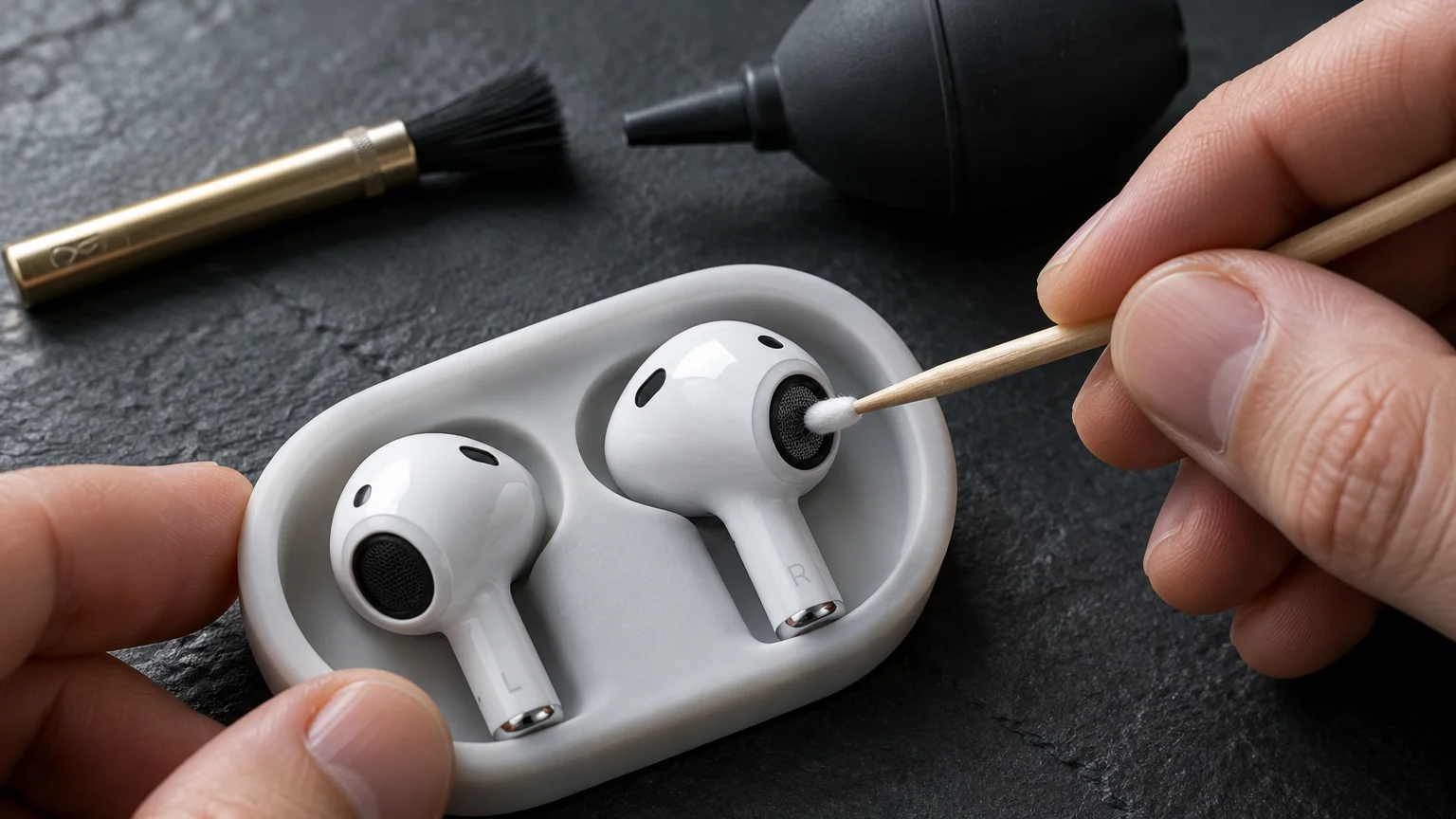
Wireless earbuds accumulate earwax, skin flakes, and natural oils during daily listening sessions and workouts. This buildup muffles audio clarity, blocks sound drivers, and introduces bacteria directly into your ear canal.
Detach silicone or foam ear tips and wash them in warm water mixed with mild dish soap. Dry them thoroughly with a clean lint-free cloth before attaching them back onto your earbuds.
Hold the earbud so the speaker grille faces downward toward your work table. Brush the mesh gently using a dry, soft-bristled toothbrush to dislodge wax flakes without pushing them inside.
For stubborn buildup on the mesh, press a small piece of removable adhesive putty against the grille. Pull the putty away smoothly to lift wax deposits out of the fine acoustic mesh.
Clean the charging contacts inside the earbud case using a dry cotton swab. Never insert wet swabs into the charging cradle, as moisture causes contact pin corrosion and charging failure.
Wipe grimy accessory charging cables with a microfiber cloth dampened with seventy percent isopropyl alcohol. Keep the metal plugs dry to maintain clean electrical contact with your devices.
09 Disinfect High-Touch Remote Controls and Gaming Controllers
Television remotes and gaming controllers rank among the most germ-laden surfaces in any modern household. Multiple family members handle these controllers daily, transferring body oils, food crumbs, and germs into button crevices.
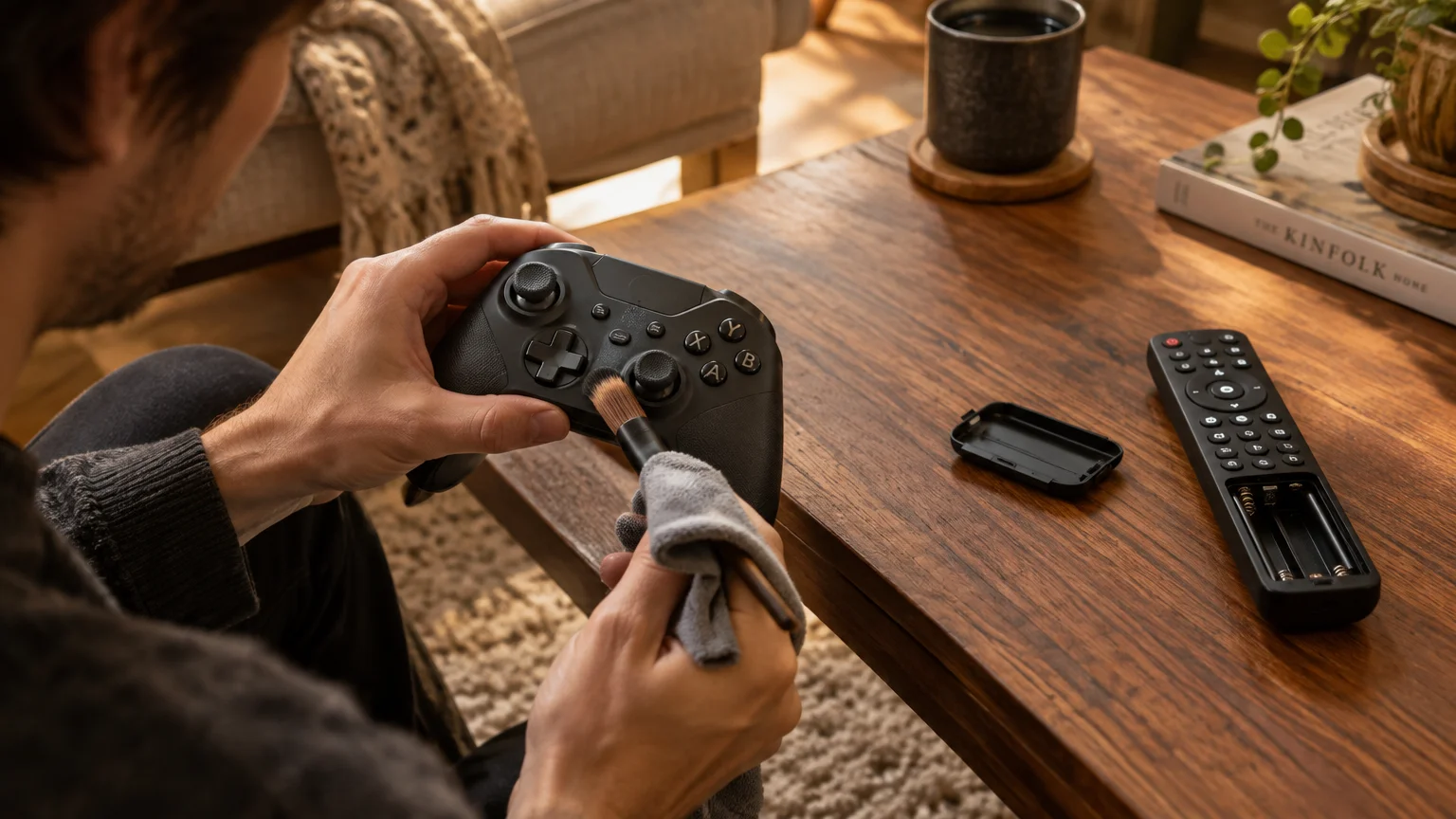
Remove the batteries or disconnect the controller from its charging cord before beginning your cleaning routine. Disconnecting power prevents accidental button presses and protects internal controller electronics during cleaning.
Wrap an alcohol wipe or an alcohol-dampened microfiber cloth around your finger to clean the controller body. Rub firmly across handles, button surfaces, and directional pads to dissolve sticky oils.
Trace the seams around controller shells and directional thumbsticks using a dry wooden toothpick. This technique easily removes compact lines of skin oils and grime that cloths cannot reach.
Clean around analog sticks using a dry cotton swab to prevent dirt from sliding down into internal sensors. Allow the controller to air-dry completely for five minutes before reinstalling the batteries.
Electronics Cleaning Safety and Compatibility Guide
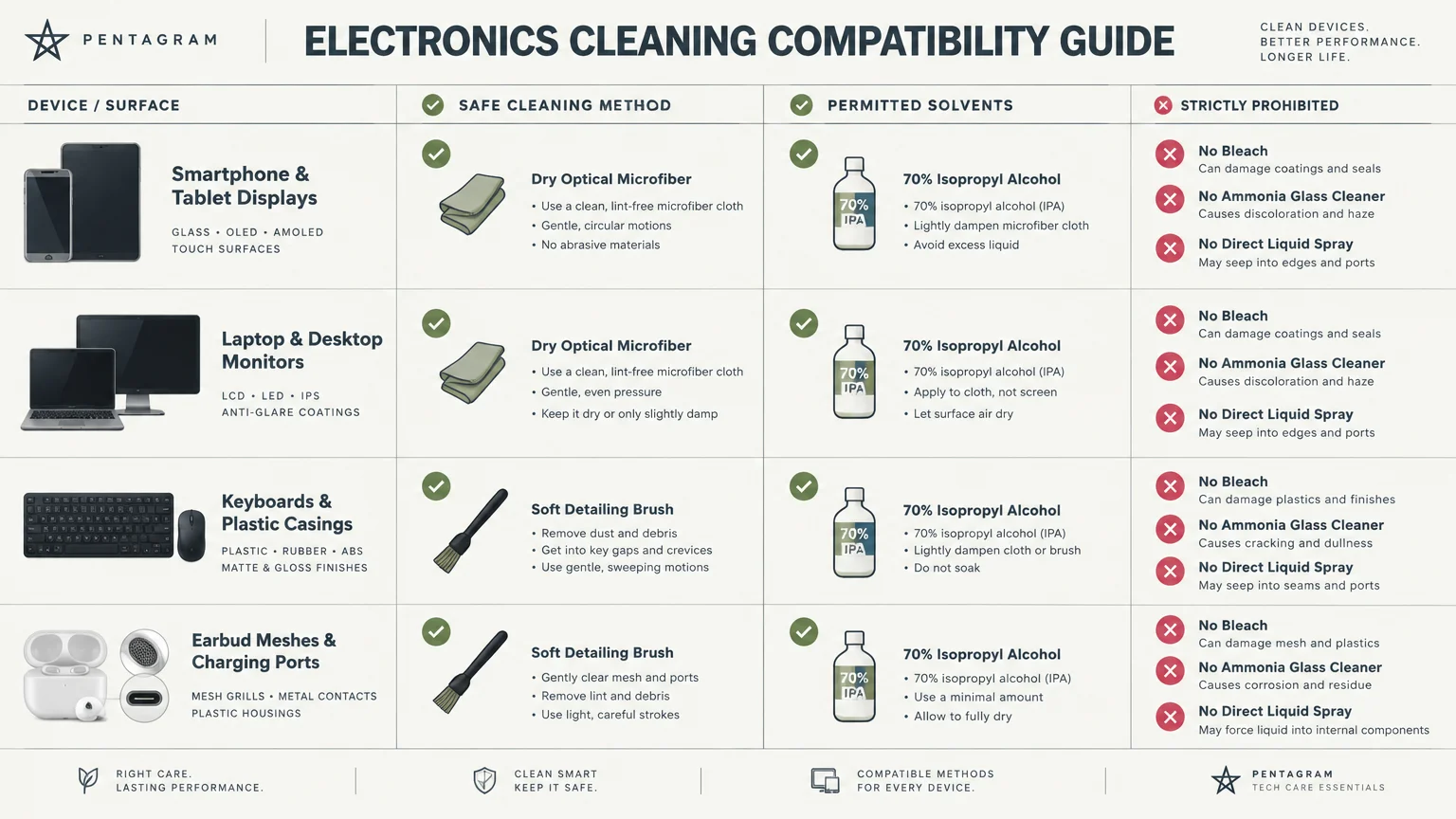
Use this reference table to select the correct cleaning materials for each piece of electronic equipment in your home.
| Device Category | Recommended Cleaning Tool | Approved Liquid Solution | What to Avoid |
|---|---|---|---|
| Smartphones and Tablets | Lint-free optical microfiber, wooden toothpicks | Distilled water, 70% isopropyl alcohol | Glass cleaner, bleach, paper towels, metal tools |
| Laptop and Desktop Keyboards | Compressed air canister, cotton swabs, detail brush | 70% isopropyl alcohol (on swabs only) | Direct liquid sprays, household vacuums, dripping cloths |
| TV Panels and PC Monitors | Extra-large plush microfiber cloth | Distilled water (misted on cloth only) | Window sprays, ammonia, heavy scrubbing pressure |
| Earbuds and Audio Gear | Soft-bristled brush, cleaning putty, dry swabs | 70% isopropyl alcohol (casing exterior only) | Liquids on speaker mesh, metal sewing needles |
| Remotes and Gamepads | Alcohol disinfectant wipes, wooden toothpicks | 70% isopropyl alcohol | Submerging in water, spraying ports directly |
Matching the proper cleaning solution to specific hardware components prevents accidental surface damage and hardware failure.
Common Costly Mistakes When Cleaning Electronics
Many well-intentioned homeowners cause expensive damage by using aggressive cleaning habits on fragile devices. Practical electronics cleaning tips prioritize patience and gentle pressure over harsh scrubbing.
Avoid using standard household vacuum cleaners to suck dust out of computer towers or open electronics. Household vacuums generate high levels of static electricity that can permanently fry sensitive microchips.
Instead, use a specialized anti-static electronics vacuum or rely on canned compressed air to disperse dust. Discharging dust outside or in an open garage keeps airborne particles from settling back onto your workspace.
Never apply household furniture polishes, car waxes, or disinfectant sprays directly to touchscreen panels. These products contain silicone oils and heavy fragrances that leave sticky, smudge-attracting films across display glass.
Do not soak cotton swabs or cloths when cleaning around electronic ports, buttons, or seams. Excess moisture flows freely into sensitive interior compartments, triggering internal liquid contact indicators that void manufacturer warranties.
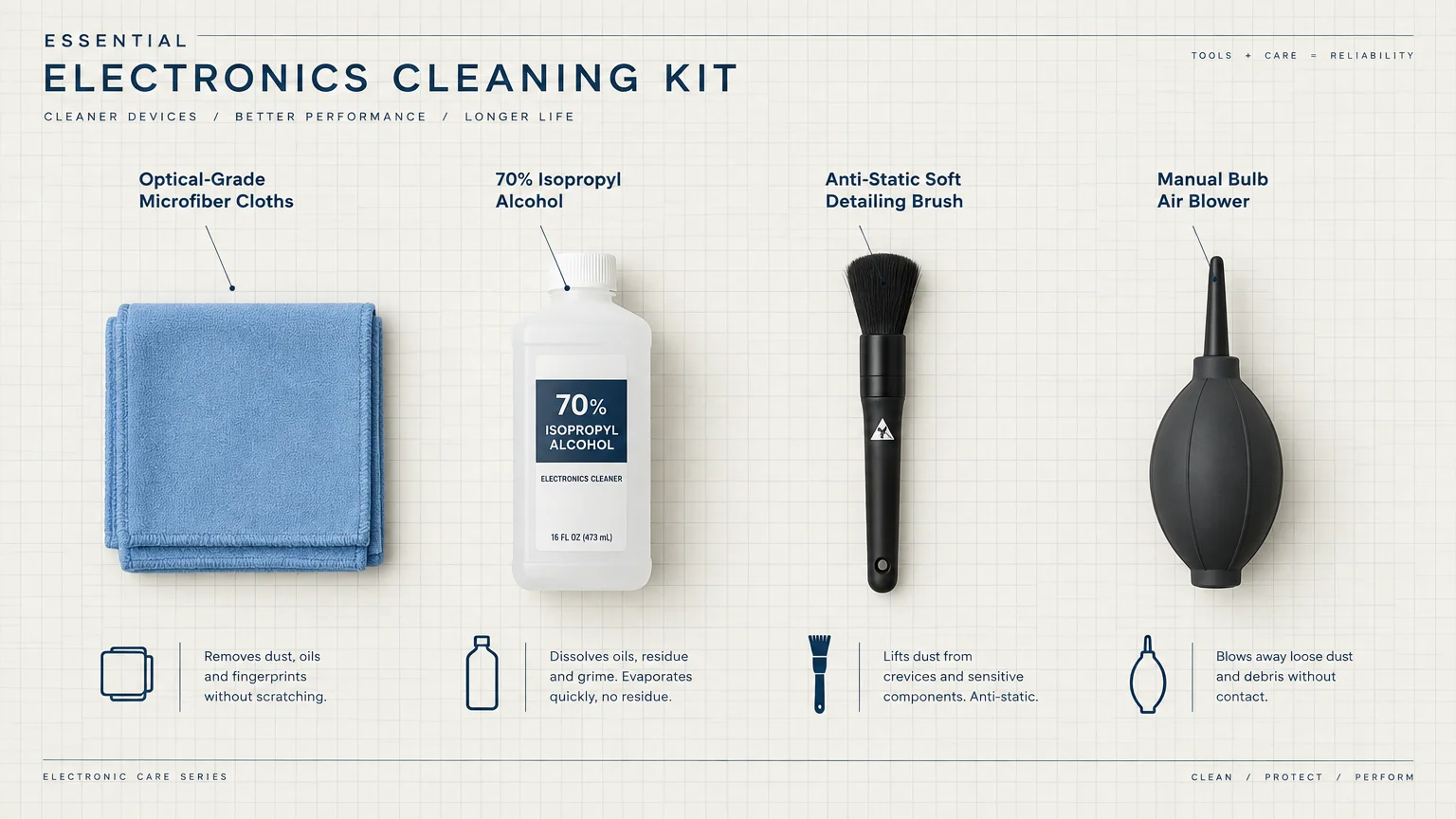
Essential Electronics Cleaning Kit Checklist
Keeping dedicated cleaning supplies in one accessible place ensures you can clean your devices quickly and safely. Assemble these affordable tools into a compact bin or pouch for convenient routine care.
- Lint-Free Microfiber Cloths: Keep several optical-grade cloths on hand for streak-free screen dusting and surface polishing.
- 70% Isopropyl Alcohol: Provides safe, rapid disinfection for hard plastic housings, keyboards, and remote controllers.
- Distilled Water: Leaves zero chalky mineral residue when gently wiping sensitive modern television screens and desktop monitors.
- Compressed Air Canister: Clears crumbs and dry debris from keyboard switches and fan grilles without moisture risk.
- Wooden Toothpicks: Clears compacted pocket lint from charging ports and speaker grilles without conducting electrical currents.
- Soft-Bristled Detailing Brush: Gently sweeps away dust from delicate camera lens rings, dial wheels, and keyboard channels.
- Precision Cotton Swabs: Reaches tight crevices around controller seams, gamepad buttons, and earbud carrying cases.
Store your cleaning kit in a clean drawer away from direct sunlight and household pets. Keeping your supplies sealed protects your microfiber cloths from collecting stray airborne dust particles between uses.
Frequently Asked Questions About Cleaning Devices
Review these common questions to clarify safe cleaning practices for your everyday devices and accessories.
Can You Use Hand Sanitizer on Electronics?
Avoid using hand sanitizers on electronics because they contain moisturizers, fragrances, and thickeners that leave greasy films. These skin emollients cloud optical glass and degrade anti-reflective screen coatings over time.
Can You Use Antibacterial Kitchen Wipes on Touchscreens?
Do not use kitchen wipes on delicate displays because they contain harsh detergents and chemical fragrances. Follow verified advice from the Microsoft Surface device care instructions, which emphasize lint-free cloths and approved isopropyl alcohol.
Why Is Distilled Water Safer Than Tap Water?
Tap water contains dissolved minerals like calcium, lime, and chlorine that leave stubborn chalky spots on glass. Distilled water undergoes purification to remove all minerals, guaranteeing a crystal-clear, streak-free display finish.
How Often Should You Clean and Disinfect Your Devices?
Wipe down high-touch personal items like your smartphone and television remote control at least once every week. Review the CDC recommendations for household cleaning and hygiene to maintain a sanitary living environment.
Dust larger stationary equipment, like desktop monitors and living room televisions, every two to three weeks. Regular light dusting prevents thick grit layers from accumulating, eliminating the need for aggressive wet scrubbing.
Your Practical Next Step
Start by gathering two clean microfiber cloths and a small bottle of seventy percent isopropyl alcohol. Walk through your living room and home office to wipe down your most frequently used remote control, smartphone, and keyboard.
Establishing this gentle two-minute habit today keeps your high-touch devices hygienic, streak-free, and operating reliably for years to come.