
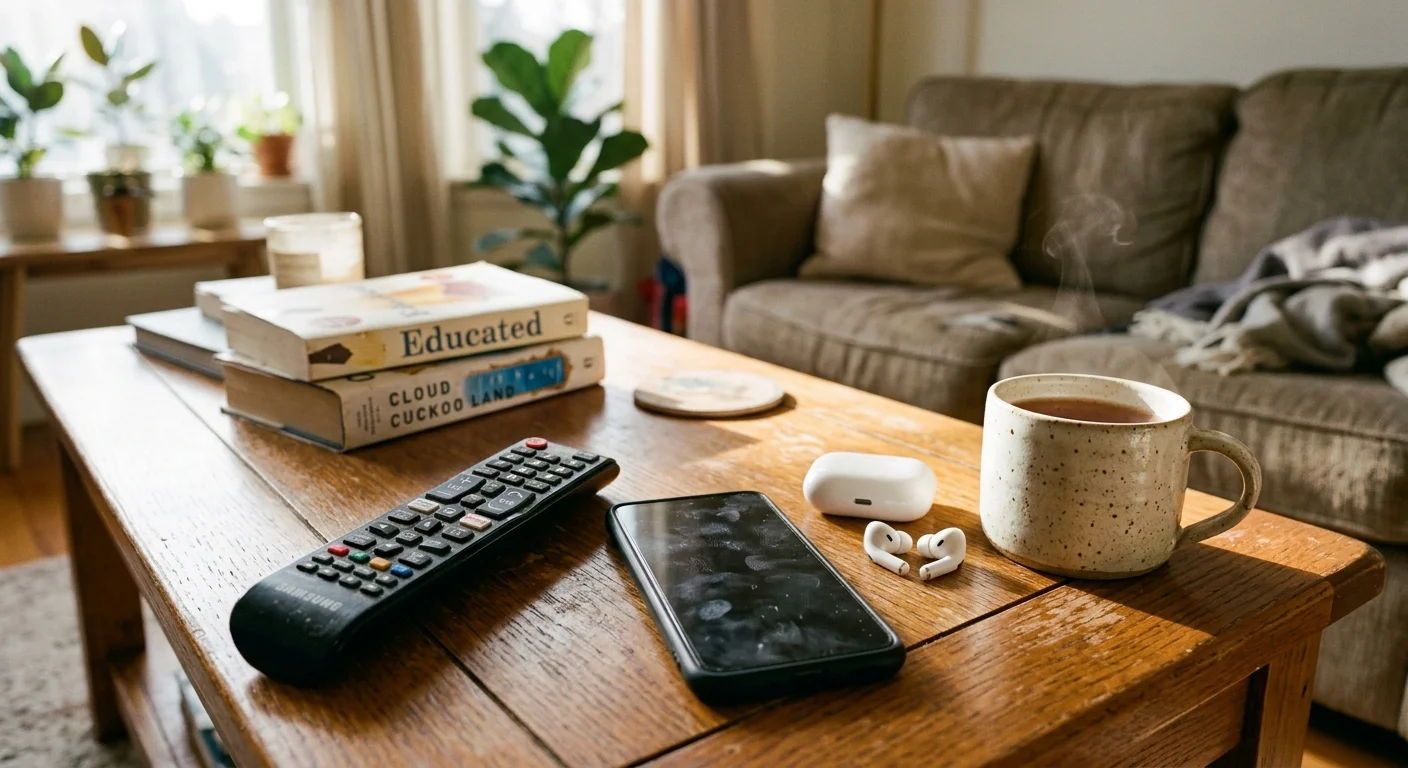
Your smartphone, TV remote, and computer keyboard accumulate microscopic bacteria, skin oils, and household dust every single hour you use them. Cleaning frequently touched devices restores their physical appearance, prevents mechanical failure, and protects your household from illness-causing pathogens. Research shows that typical cell phones harbor roughly ten times more bacteria than a standard toilet seat, yet most people rarely disinfect their personal tech. Recognizing the early physical and operational warnings tells you exactly when grime has crossed the line from a cosmetic annoyance to a hygiene hazard. By mastering quick, safe maintenance routines, you can easily maintain a healthier, calmer home while extending the lifespan of your essential gadgets.
01 Visible Smudges, Fingerprint Slime, and Oily Film
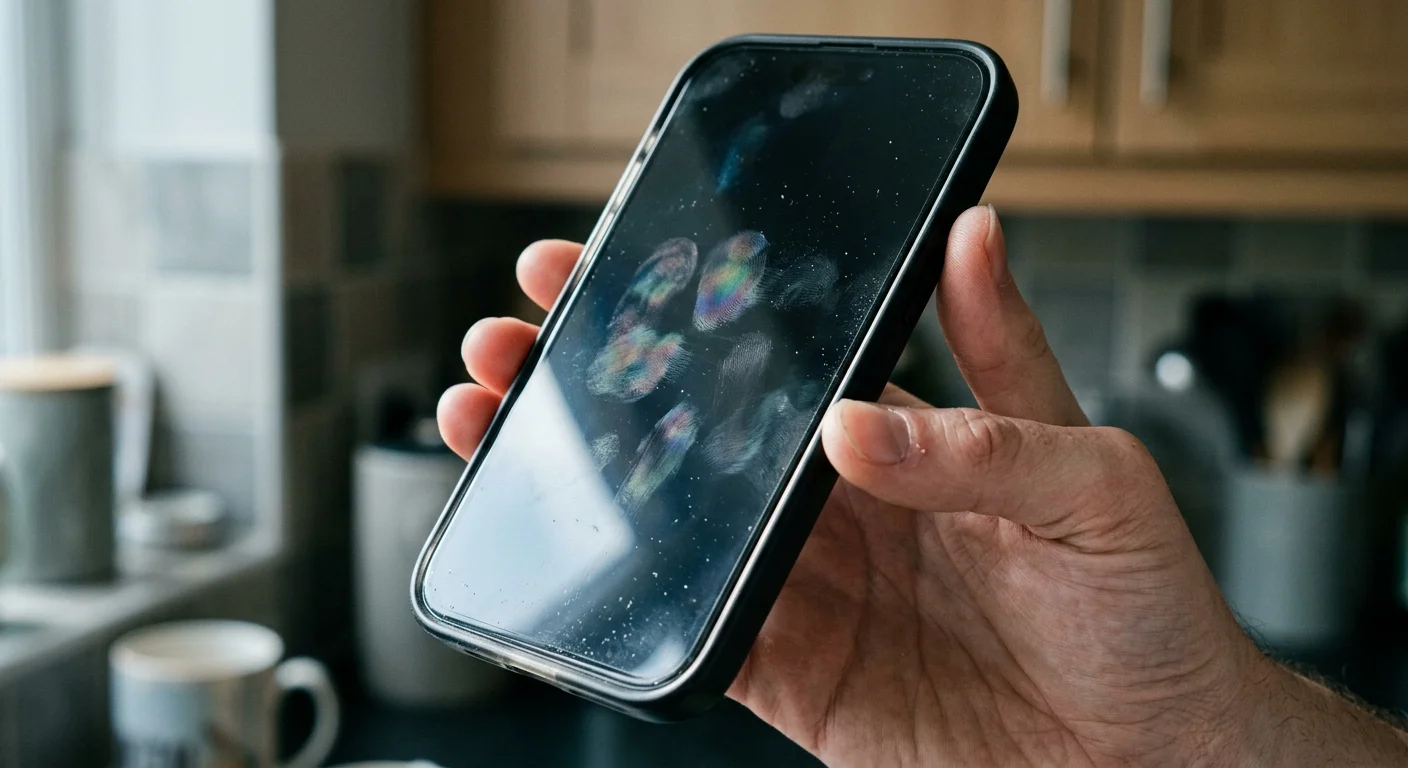
Touchscreens on smartphones, tablets, and smart home control panels feature specialized oleophobic—oil-repelling—coatings designed to keep glass feeling smooth. Over time, natural sebum from your fingertips interacts with ambient dust, airborne grease, and hand lotion to break down this protective barrier; this creates a slick, rainbow-hued haze across your display. When you notice that simple wiping against your shirt cuff merely smears the film around rather than removing it, your device requires a proper, chemical-safe intervention.
Accumulated surface oils do far more than obstruct your viewing experience under bright lighting; they create an ideal adhesive layer for airborne dust particles and microbial spores. When you swipe across a greasy glass screen, you press these abrasive particles directly into the display glass, which gradually causes microscopic micro-scratches over months of daily use.
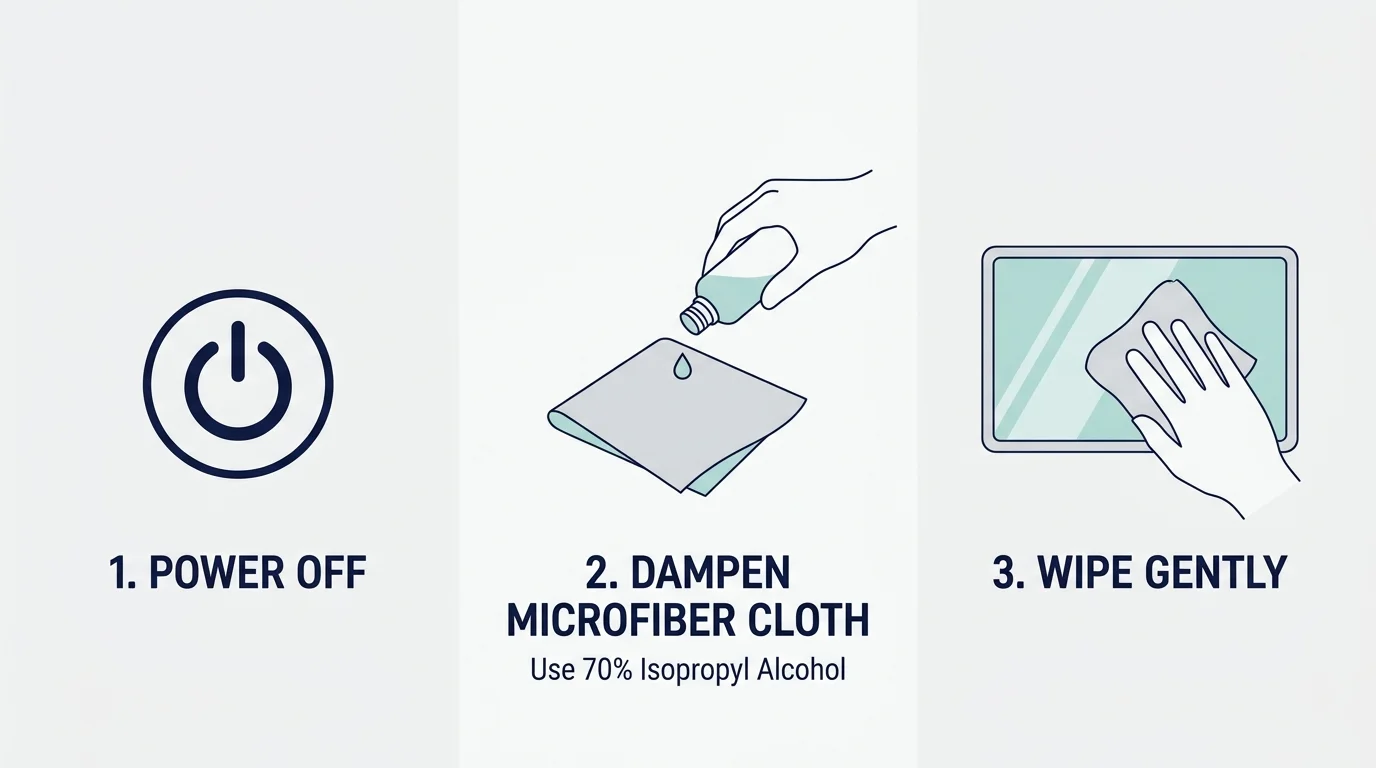
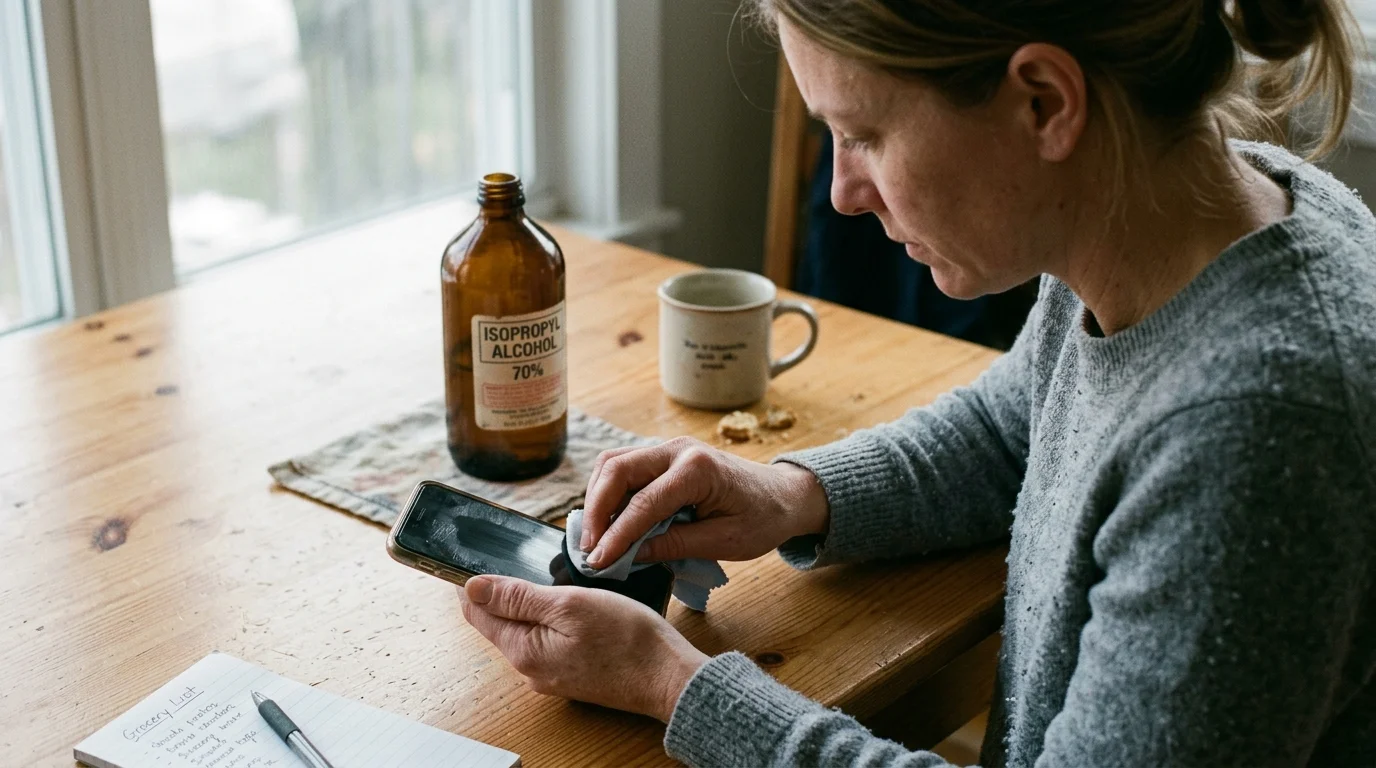
To safely eliminate this oily buildup, follow official manufacturer guidelines from industry leaders like Apple official support guidance and Samsung device care instructions. Always power down the device, remove any protective case, and lightly dampen a premium, dry microfiber cloth with a solution of 70 percent isopropyl alcohol mixed with distilled water. Never spray liquid directly onto the glass panel, as fluid can easily migrate into speaker grilles and charging ports.
02 Sticky, Sluggish, or Unresponsive Buttons
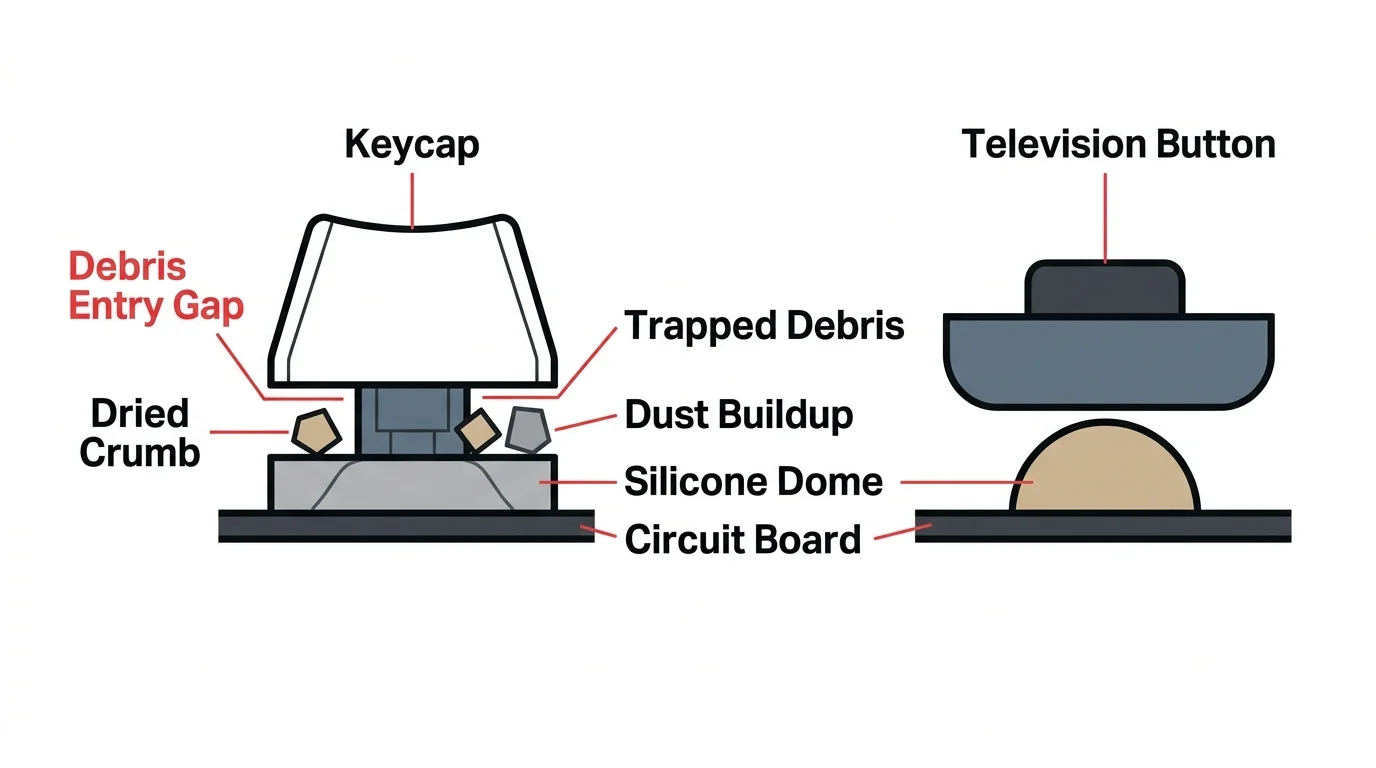
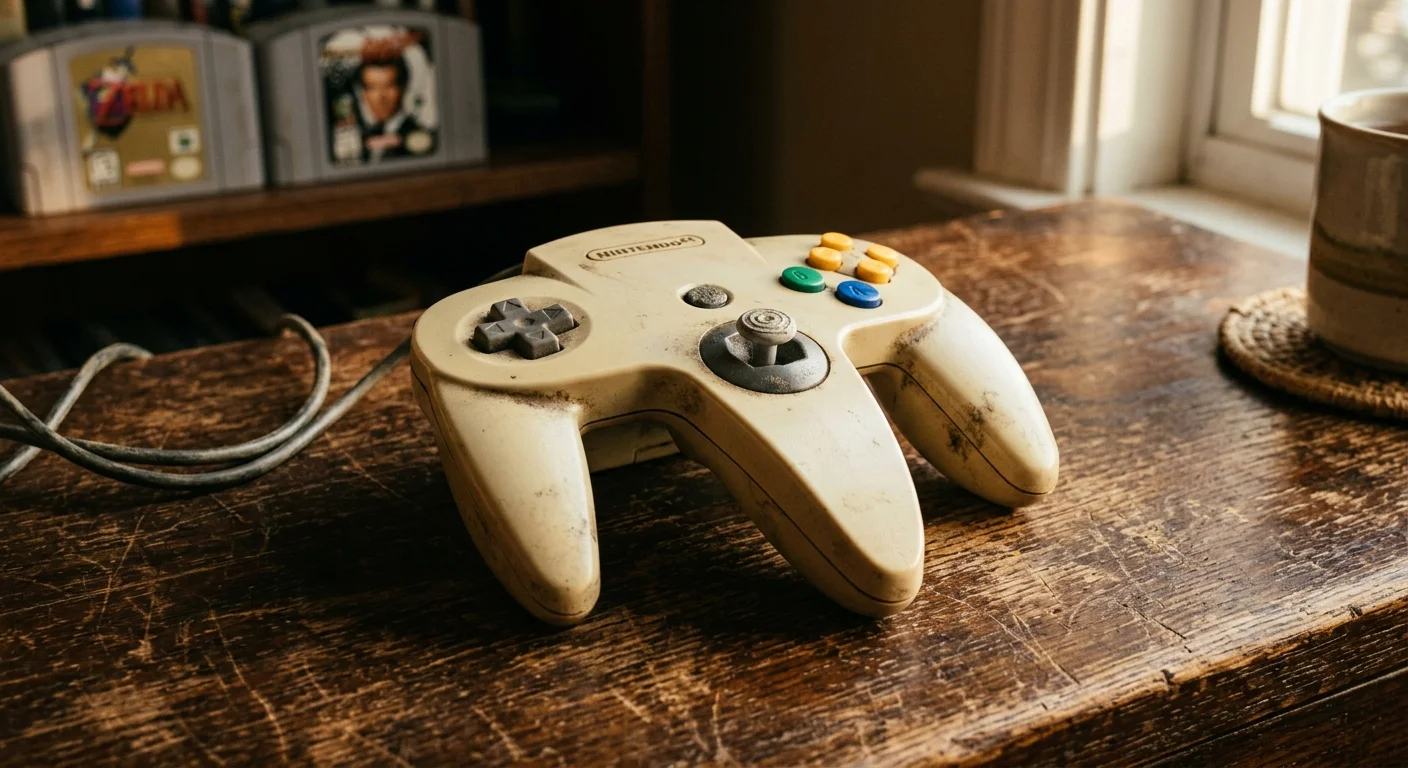
Television remotes, gaming controllers, and computer keyboards represent prime examples of electronics that need regular cleaning. When you press a directional button on your TV remote or a key on your laptop and notice a delayed return—or a dull, squishy sensation instead of a crisp click—you are experiencing internal debris accumulation. Food crumbs, skin scales, spilled beverages, and dried hand lotion sink into the fine perimeter gaps surrounding mechanical buttons.
Inside most hand-held controllers lies a flexible rubber membrane lined with conductive carbon pads. When grease and debris seep underneath the plastic keycaps, they form a sticky barrier between the carbon contact and the underlying printed circuit board. Over time, this forces you to press buttons with excessive physical pressure, which ultimately degrades the internal silicone dome and ruins the remote entirely.
Addressing sticky buttons requires a disciplined hands-on approach before permanently damaging the internal components:
- Power down and disconnect: Remove batteries from remotes or unplug keyboards from your computer before starting.
- Invert and tap gently: Hold the device key-side down over a wastebasket and gently tap the back chassis to dislodge loose grit and dried crumbs.
- Precision swab detailing: Dip a tightly wound cotton swab into 70 percent isopropyl alcohol, squeeze out all excess moisture, and trace carefully around the base of every individual button to dissolve sticky residues.
- Brush out crevices: Use a clean, dry, soft-bristled toothbrush to sweep away softened grime hanging around key hinges.
03 Muffled Sound or Crackling Earbud Audio
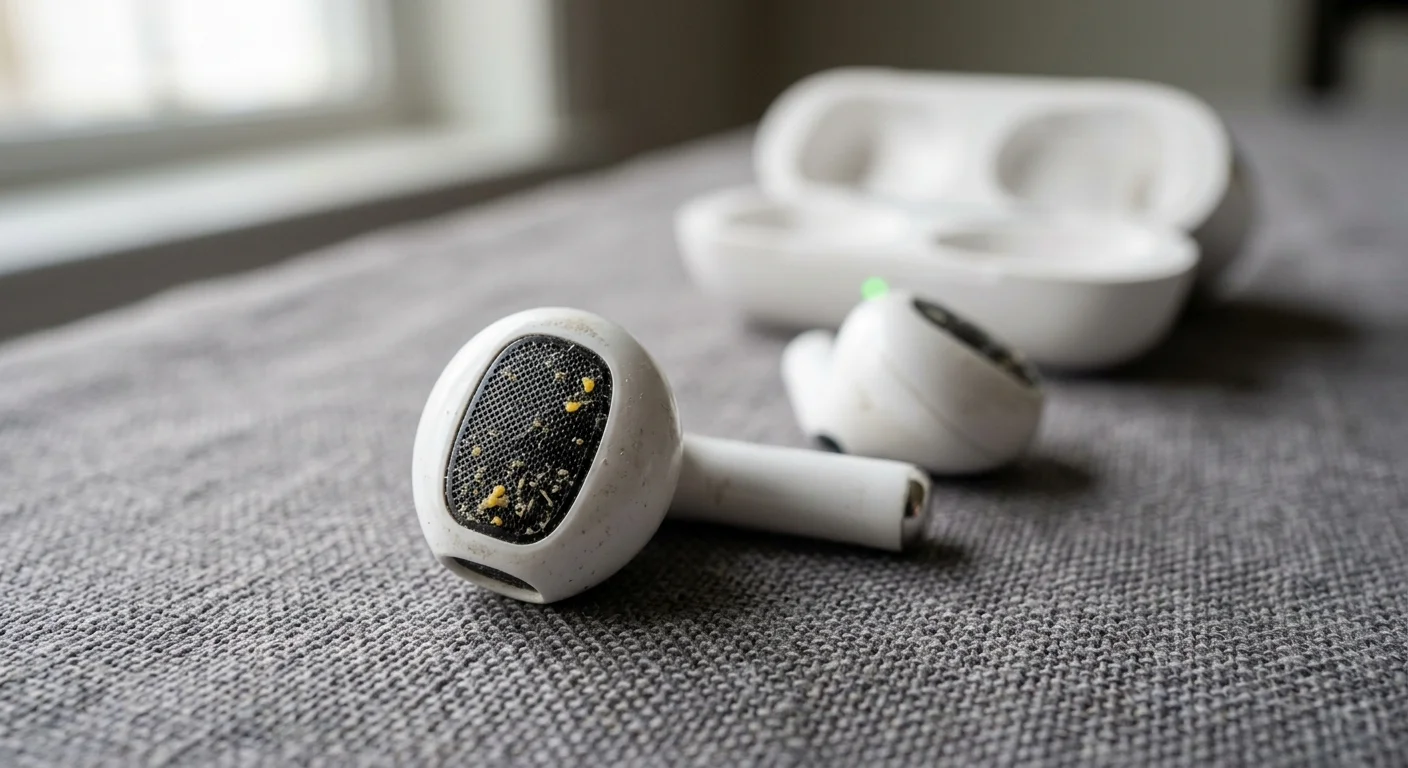
Wireless earbuds, over-ear headphone drivers, and smartphone speaker grilles sit directly against human skin, hair, and ear canals. When you notice muffled audio, reduced overall volume output, or crackling sounds during phone calls, the primary culprit is almost always physical blockage rather than an electronic malfunction. Earwax, dried perspiration, makeup residue, and pocket lint collect rapidly inside fine acoustic mesh screens.
Because earwax contains natural lipids, it acts as a permanent magnet for fine ambient lint inside your pockets or purse. As this biological mixture thickens across the micro-mesh speaker cover, it creates a physical dampening barrier that blocks sound waves; it also creates a localized breeding ground for skin flora that can trigger uncomfortable outer ear canal infections.
Cleaning sensitive audio mesh requires extreme gentleness so you do not push foreign material deeper into the sound driver chamber. Hold the earbud with the speaker mesh facing downward; this allows gravity to assist in pulling debris out rather than pushing it inward. Use a clean, completely dry, ultra-soft toothbrush or a dedicated audio cleaning tool to make gentle, sweeping downward strokes across the mesh. Wipe down silicone ear tips with a soft cloth dampened with mild soapy water, ensuring they are completely air-dried before reattaching them to the plastic housing.
04 Sudden Overheating and Whining Internal Fans
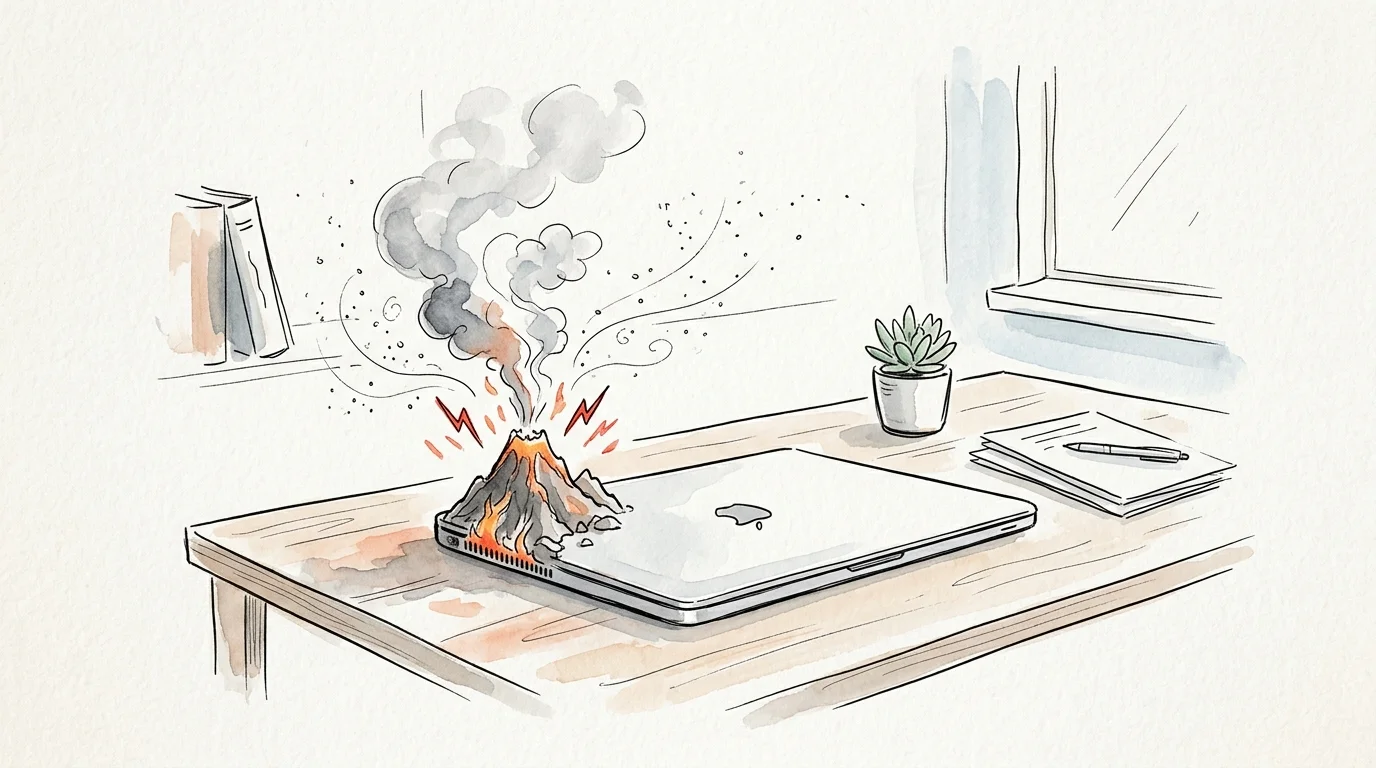
Laptops, streaming media boxes, desktop computers, and video game consoles rely on continuous airflow to keep sensitive internal microprocessors cool. If your laptop lap-desk feels uncomfortably hot to the touch, or if your gaming console fan sounds like a jet engine during routine operation, dust and pet hair have choked off internal cooling pathways.
Static charges naturally generated by electronic circuit boards draw airborne dust, fabric fibers, and dander inside ventilation slots. Over months of operation, this material forms a felt-like insulating blanket across copper heat sinks and internal fan blades. When heat cannot dissipate effectively, internal safeguard circuits automatically throttle back processor speeds—causing severe system lag—and force cooling fans to spin at maximum capacity, accelerating mechanical wear.
Clearing internal thermal blockages preserves expensive microchips and restores quiet operation. Use a can of compressed air held strictly upright; never shake or tilt the can, as liquid propellant can freeze and crack delicate plastic parts. Direct short, controlled bursts of air into intake vents to dislodge dust blankets. For home desktop towers or accessible console vents, hold the fan blades steady with a wooden toothpick while blowing air through them, as force-spinning small electric fans with compressed air can generate backward voltage spikes that damage internal circuits.
05 Mysterious Facial Breakouts along the Jawline and Cheek
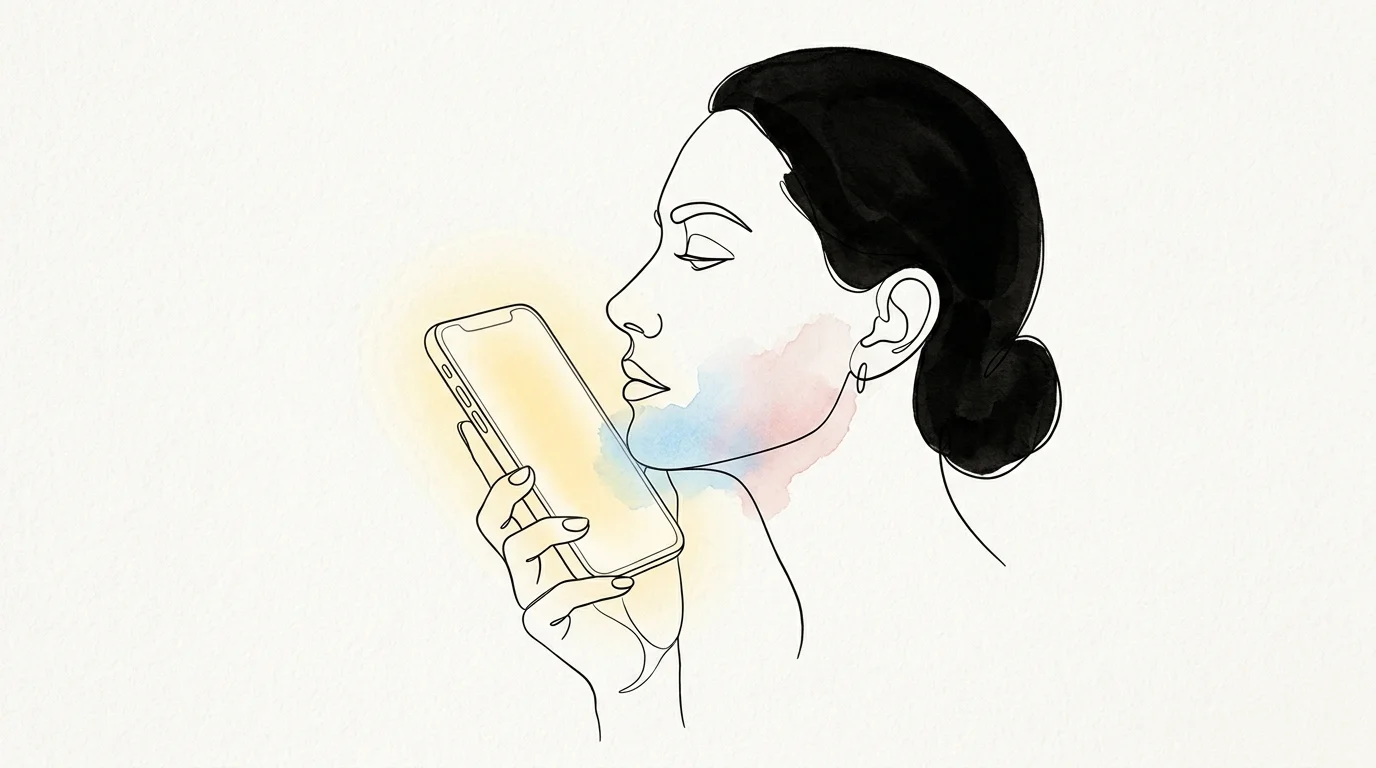
If you experience unexpected acne flare-ups or localized skin irritation along your cheekbones, jawline, or ears, your smartphone is often the silent culprit. When you hold a mobile device against your face, you press accumulated surface dirt, sweat, cosmetics, and environmental bacteria directly against your skin pores. Combined with the mild thermal heat generated by the device’s battery and display, this environment creates perfect conditions for skin inflammation.
Dermatologists refer to skin breakouts caused by friction, pressure, and surface contact as acne mechanica. According to established Mayo Clinic dermatological advice, repeatedly pressing bacteria-laden objects against sensitive facial tissue clogs pores and intensifies existing skin conditions. Transferring pathogens from public transit handrails to your phone screen—and subsequently to your face—significantly raises skin health risks.
Implementing targeted hygiene tips for phones and remotes helps stop recurring facial breakouts before they start. Clean your phone glass at least once daily using an electronic-safe disinfectant wipe or a soft microfiber cloth lightly moistened with 70 percent isopropyl alcohol. Alternatively, adopt hands-free speakerphone modes or wired/wireless headsets during long phone calls to minimize direct glass-to-skin contact altogether.
06 Dull, Discolored Surfaces and Unpleasant Odors
Flexible clear phone cases, soft-touch rubber coatings on computer mice, and game controller grips eventually develop a dull, yellowed, or tacky finish. If a device emits a stale, sour odor when held close, or leaves an unpleasant sticky residue on your hands, biological oils have combined with atmospheric oxygen to degrade the outer polymer layers.
Clear thermoplastic polyurethane (TPU) phone cases naturally degrade when exposed to ultraviolet light and biological lipids secreted by human skin. Human sweat contains sodium chloride, lactic acid, and various fatty acids; when absorbed into porous rubber or textured plastic grips, these compounds nourish microscopic bacteria, creating localized odors and breaking down soft-touch rubber coatings into a tacky gel.
Restoring dirty cases and textured peripheral grips requires breaking down grease without melting delicate plastics:
- Remove structural hardware: Completely remove flexible phone cases, silicone skins, and plastic covers from electronics before applying liquid cleaning agents.
- Warm soapy bath: Submerge empty silicone or TPU cases in warm water mixed with two drops of degreasing dish soap; scrub thoroughly using a soft microfiber cloth or soft sponge.
- Alcohol wipe-down for hard plastics: For hard plastic mouse bodies and controller handles, wipe down exterior surfaces using a microfiber cloth dampened with 70 percent isopropyl alcohol to dissolve sticky hand grease.
- Complete air drying: Allow all washed protective cases to dry completely for at least two hours before inserting electronic devices back inside to trap zero moisture against internal charging ports.
07 Seasonal Illnesses Spreading Rapidly Through Your Household
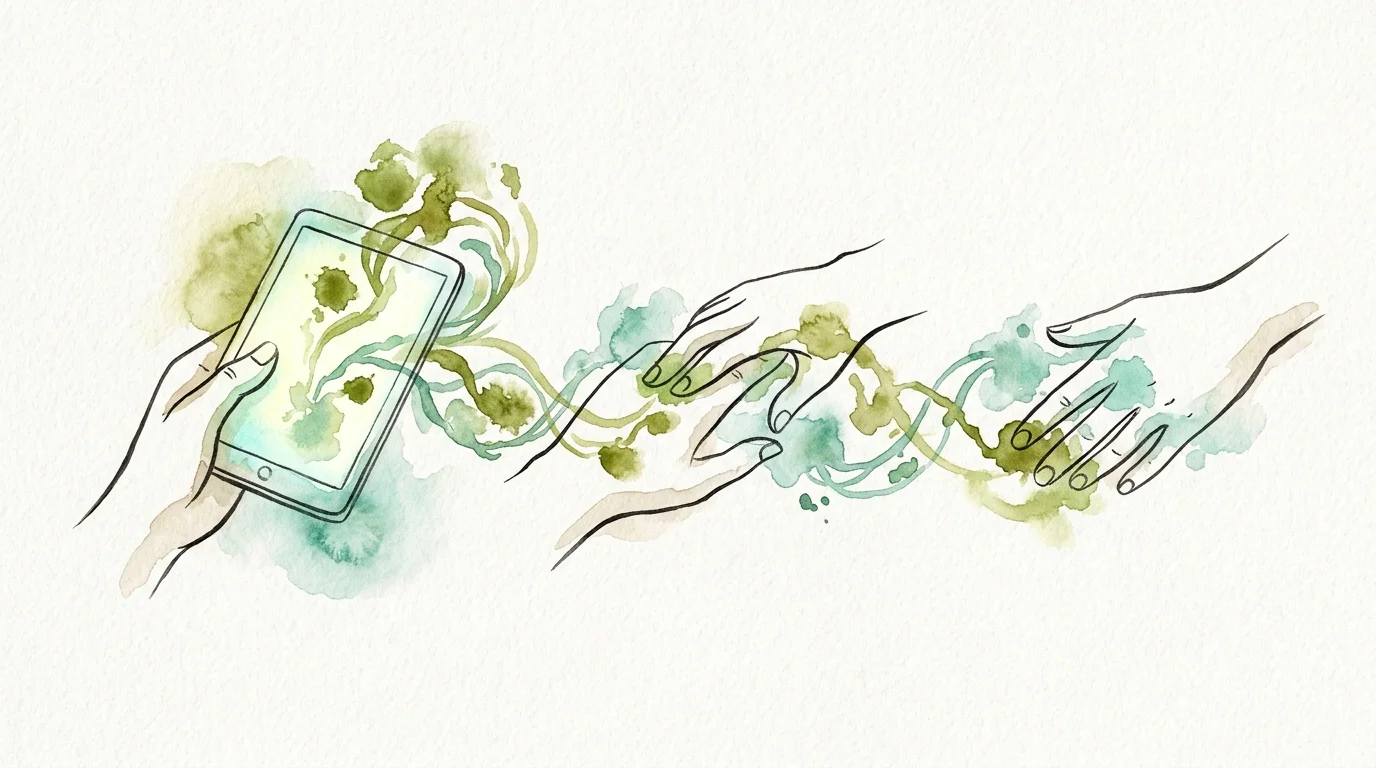
When multiple family members fall sick sequentially with viral colds, seasonal influenza, or stomach bugs, shared family technology often acts as a major transmission vector. Shared family tablets, primary TV remotes, home theater controllers, smart thermostat touchpads, and desktop computer mice are high-touch surfaces handled dozens of times daily by everyone in the household—frequently without prior handwashing.
Respiratory viruses and gastrointestinal pathogens can survive on non-porous hard plastics and glass surfaces for anywhere from several hours to several days. When an infected individual touches their mouth or nose and subsequently handles a shared remote control, they leave behind infectious virions. Following the official CDC surface disinfection recommendations by regularly disinfecting electronics regularly breaks the domestic chain of infection during peak viral seasons.
Prioritize cleaning frequently touched devices immediately after guests visit or whenever any household member exhibits early symptoms of contagious illness. Using designated 70 percent alcohol disinfectant wipes across every high-touch controller, tablet bezel, and power button cuts virus concentration by over 99 percent, providing active protection for vulnerable family members and older adults.
Complete Cleaning Protocols for Household Electronics
Matching the right cleaning method to specific electronic equipment prevents costly cosmetic and electrical damage while delivering maximum hygiene benefits. Use the quick-reference protocol matrix below to guide your routine maintenance:
| Device Category | Primary Contaminants | Recommended Frequency | Safe Cleaning Protocol |
|---|---|---|---|
| Smartphones & Tablets | Fingerprint oils, face makeup, airborne bacteria | Daily wipe-down | Dampened microfiber cloth with 70% isopropyl alcohol; avoid ports. |
| TV Remotes & Game Controllers | Food grease, dead skin cells, sticky dust | Weekly routine | Remove batteries; clean around buttons with alcohol-dampened swab; brush crevices. |
| Laptops & Desktop Keyboards | Crumb accumulation, hair, finger grease | Bi-weekly routine | Invert and tap out debris; blast compressed air bursts; wipe keycaps with microfiber. |
| Earbuds & Headphones | Earwax, sweat, facial oils, lint | Weekly routine | Dry soft brush downward on speaker mesh; wipe silicone tips with mild soap solution. |
| Smart Home Displays & Switches | Cross-contamination germs, smudges | Twice weekly | 70% isopropyl disinfectant wipe across touch surfaces and outer frame bezels. |
Safety Rules for Cleaning and Disinfecting Tech
While germs on everyday electronics represent a legitimate health concern, using harsh household bathroom or kitchen cleansers can permanently ruin delicate screen coatings and electronic components. Follow these fundamental safety rules every single time you clean technology items:
- Never spray liquids directly onto electronics: Always apply liquid cleaning agents to a microfiber cloth first, then gently wipe the hardware surface. Direct spraying forces liquid into microphone ports, seam gaps, and speaker grills.
- Avoid harsh chemical products: Absolutely avoid pure bleach, hydrogen peroxide, acetone, ammonia, or aerosol glass cleaners like Windex; these chemicals instantly dissolve oleophobic display coatings and turn clear plastics cloudy.
- Disconnect power sources entirely: Always shut down laptops, unplug desktop power cords, and remove physical batteries from remote controls before introducing any damp cleaning cloth.
- Use 70 percent isopropyl alcohol: Stick strictly to 70 percent concentration isopropyl alcohol. Higher concentrations evaporate too quickly to kill germs effectively, while lower concentrations introduce excess water that takes too long to dry safely.
- Ditch abrasive materials: Never use paper towels, facial tissues, dish sponges, or bath towels to clean displays. Wood pulp fibers inside paper products leave microscopic scratches across plastic and glass touchscreens.
A Simple Weekly Electronics Cleaning Habit
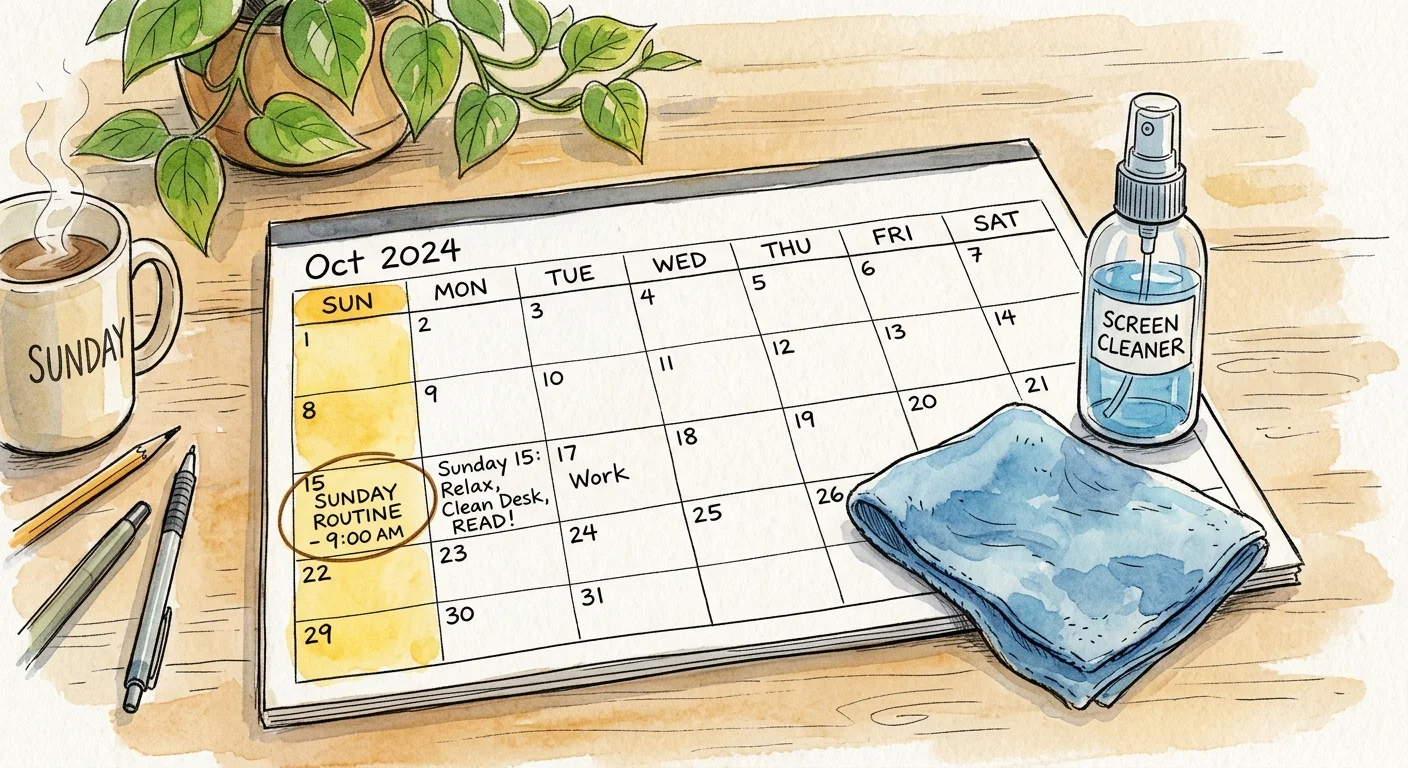
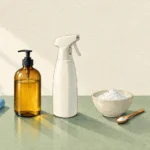
Integrating technology maintenance into your weekly household routine takes under ten minutes when you prepare the correct tools in advance. Create a compact tech cleaning kit containing two high-grade microfiber cloths, a small bottle of 70 percent isopropyl alcohol, a package of pre-moistened electronic-safe wipes, a soft-bristled detail brush, and a wooden toothpick.
Pair this routine with an existing household habit, such as taking out the weekly recycling or changing bed linens. On your designated day, gather all television remotes, smart home hub panels, mobile phones, and computer peripherals in your living room. Give each item a quick brush to dislodge visible grit, followed by a light wipe-down with your dampened alcohol microfiber cloth. This brief habit keeps your gadgets looking brand new, improves hardware responsiveness, and prevents unwanted germ transmission across your household.
Your Next Practical Step
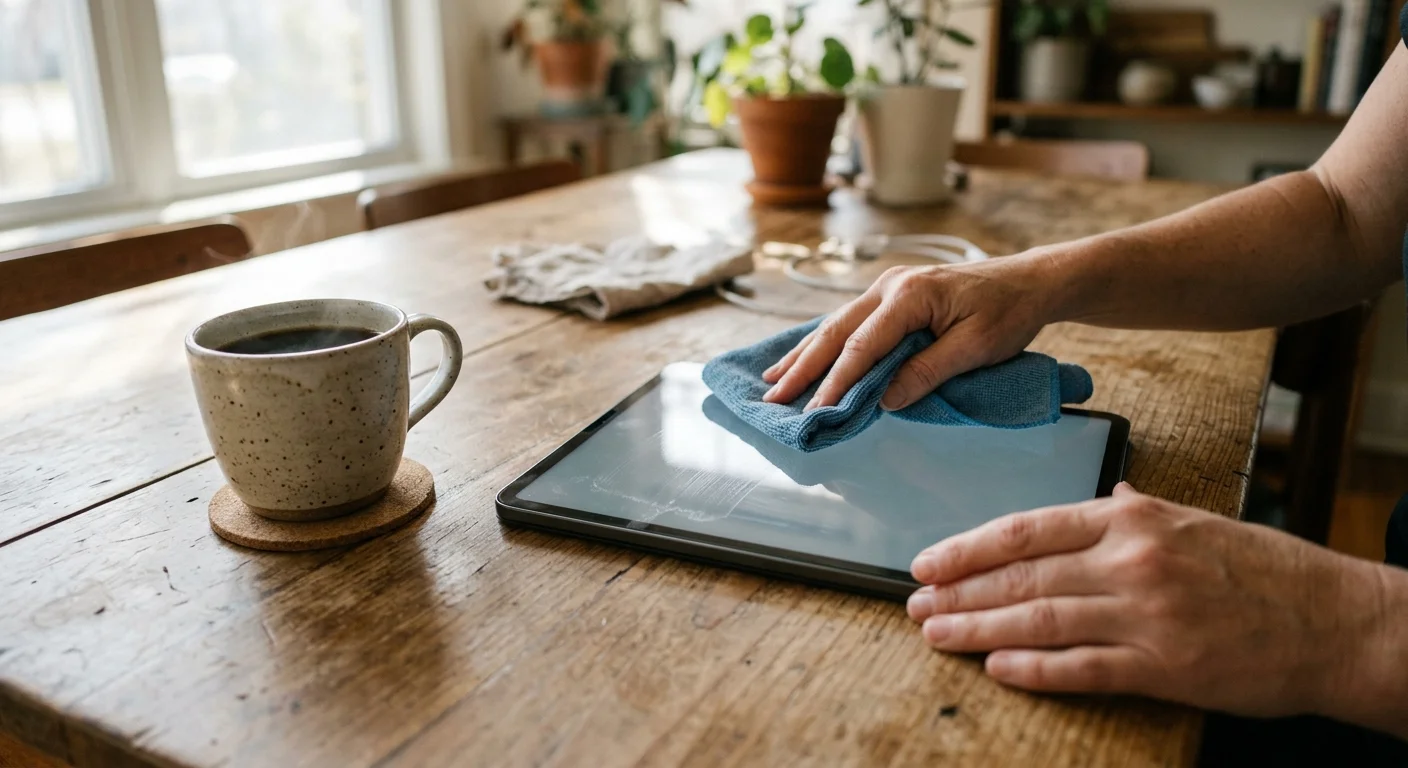
Take your smartphone out of its protective case right now, inspect the camera lenses and charging port for lint, and give the glass display a thorough wipe down with a soft microfiber cloth lightly dampened with 70 percent isopropyl alcohol.



Excellent information